User Interaction - Athena#
Athena is the conversational bot that allows users to ask questions about the business data in a natural language form and get answers.
Accessing Athena#
Athena is available on every screen in the ConverSight platform. Simply click the Ask Athena icon to open it anytime.
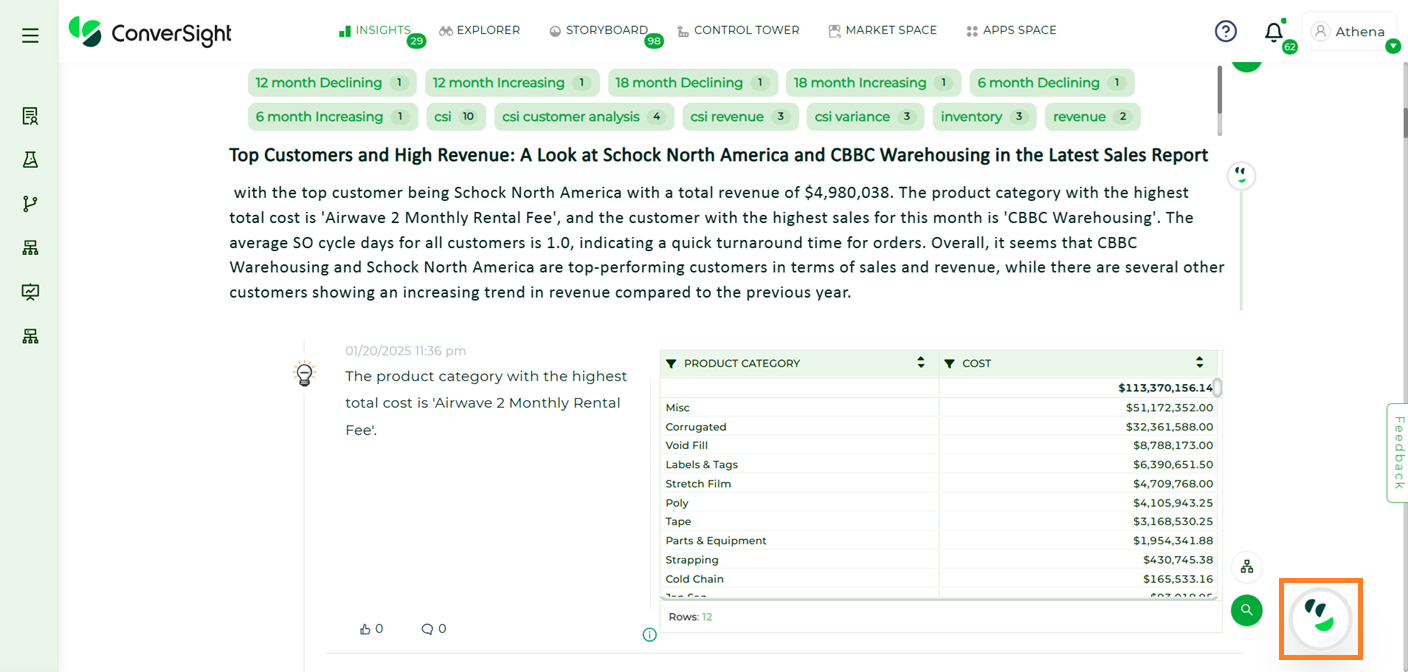
Ask Athena#
Athena processes responses asynchronously, allowing you to work without disruptions. When a response is generated, a popup notification appears, letting you access it instantly with a single click for a smooth experience.
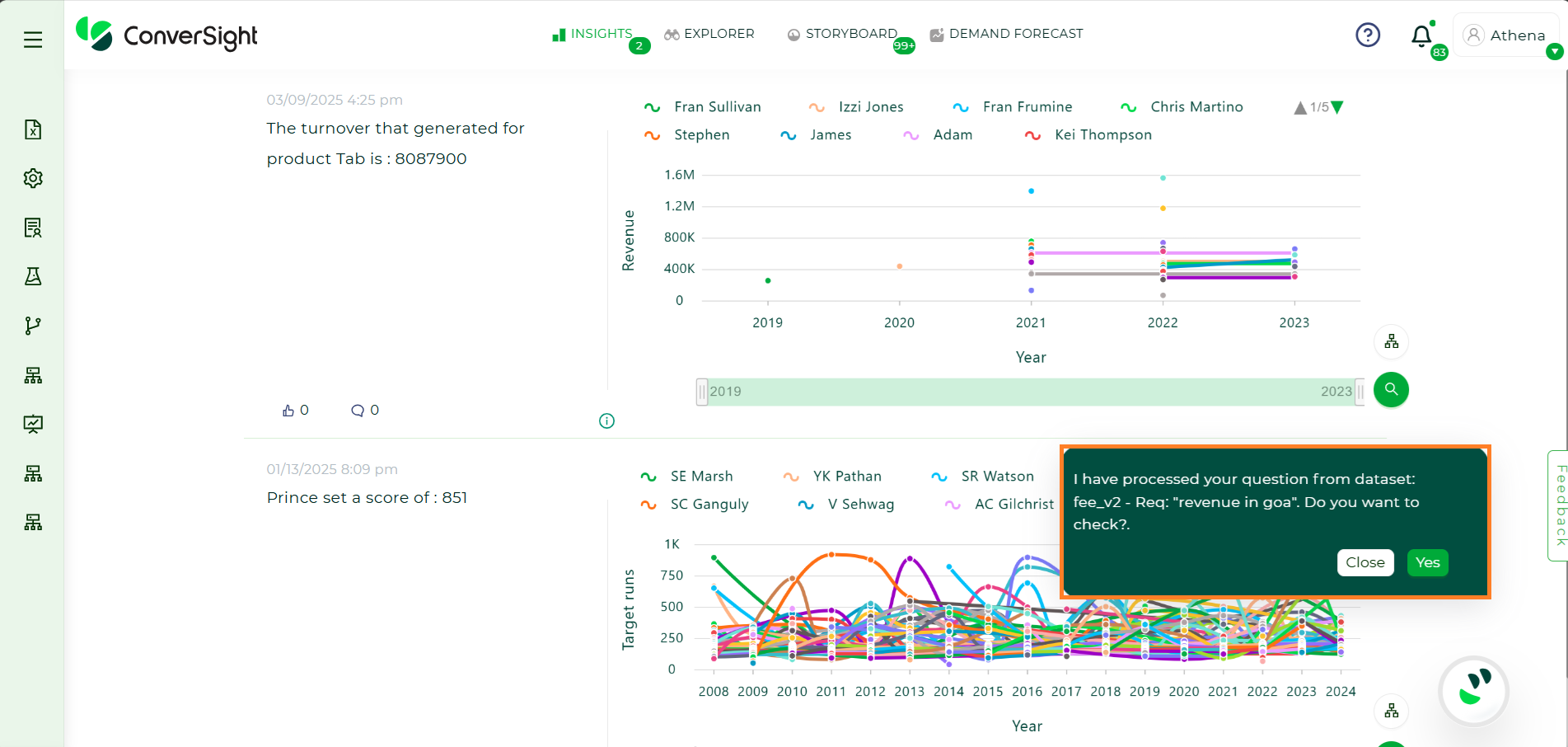
Direct Response Navigation#
Querying Athena#
To query Athena, follow the steps outlined below:
Step 1: Choose the Dataset you want to query to ensure Athena uses the correct data source.
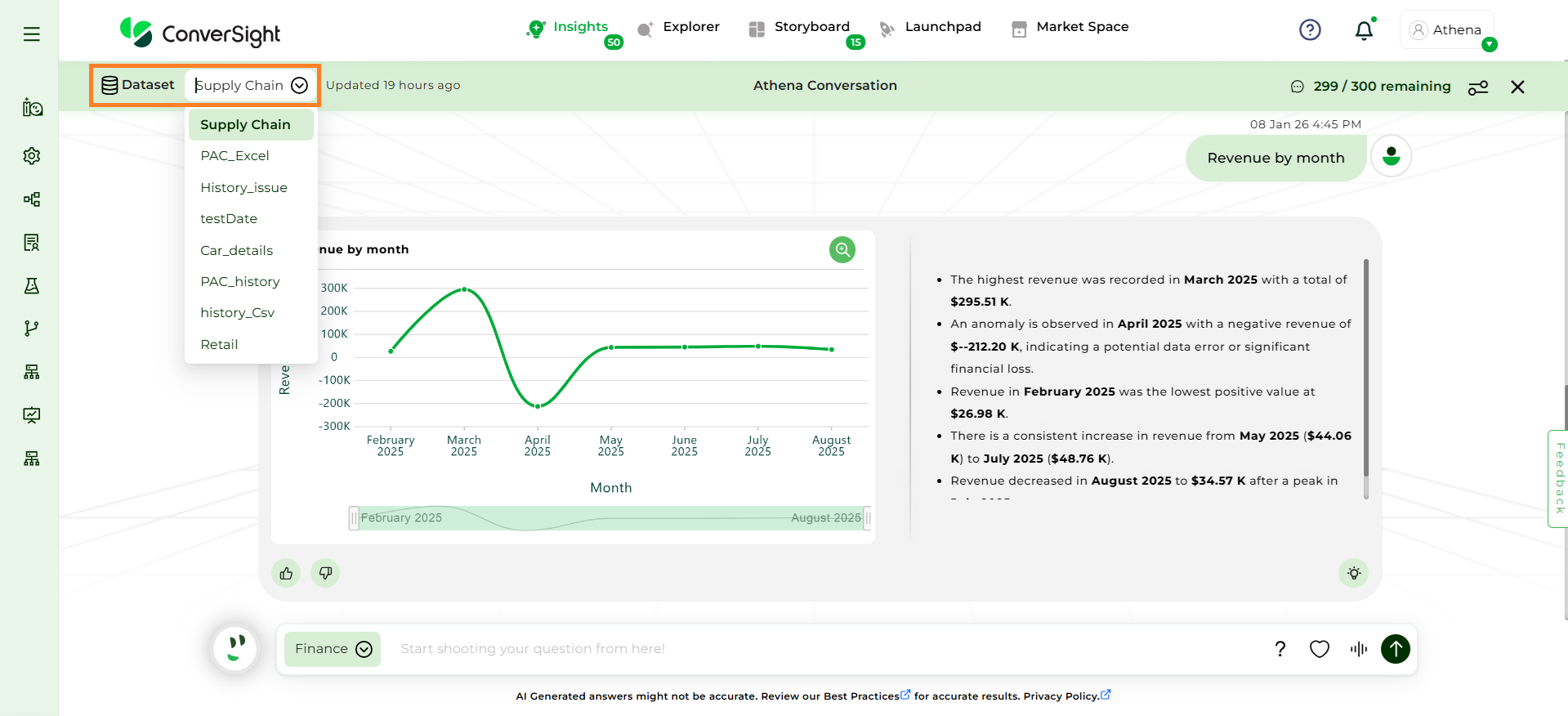
Dataset Selection#
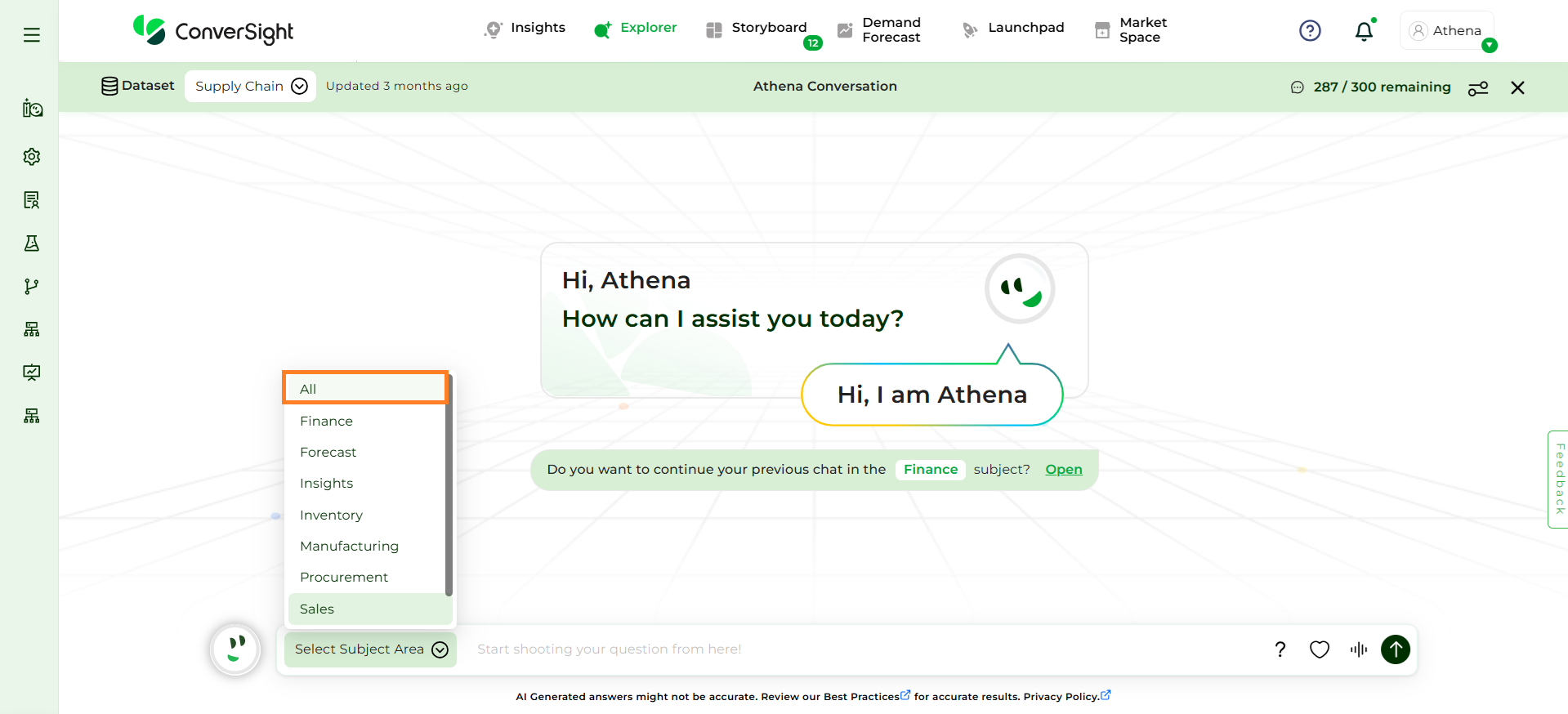
Step 2: Select the relevant Subject Area in which you want to ask queries. This helps Athena focus on the appropriate context and improves the accuracy of the responses. To learn more about Subject Areas, Click Here.
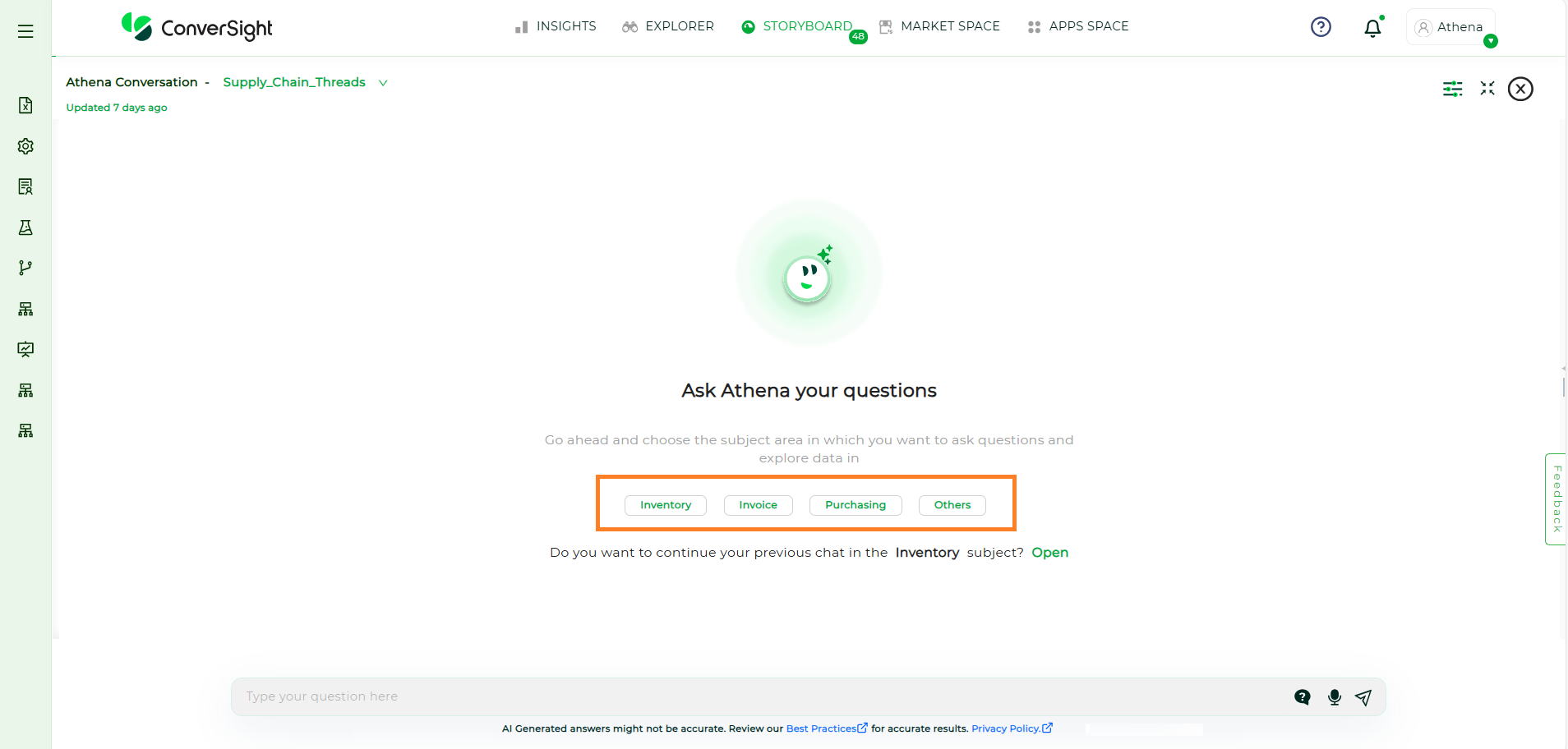
Subject Area#
The All option includes all tables in the dataset, allowing access to all columns across the dataset.
Subject Area#
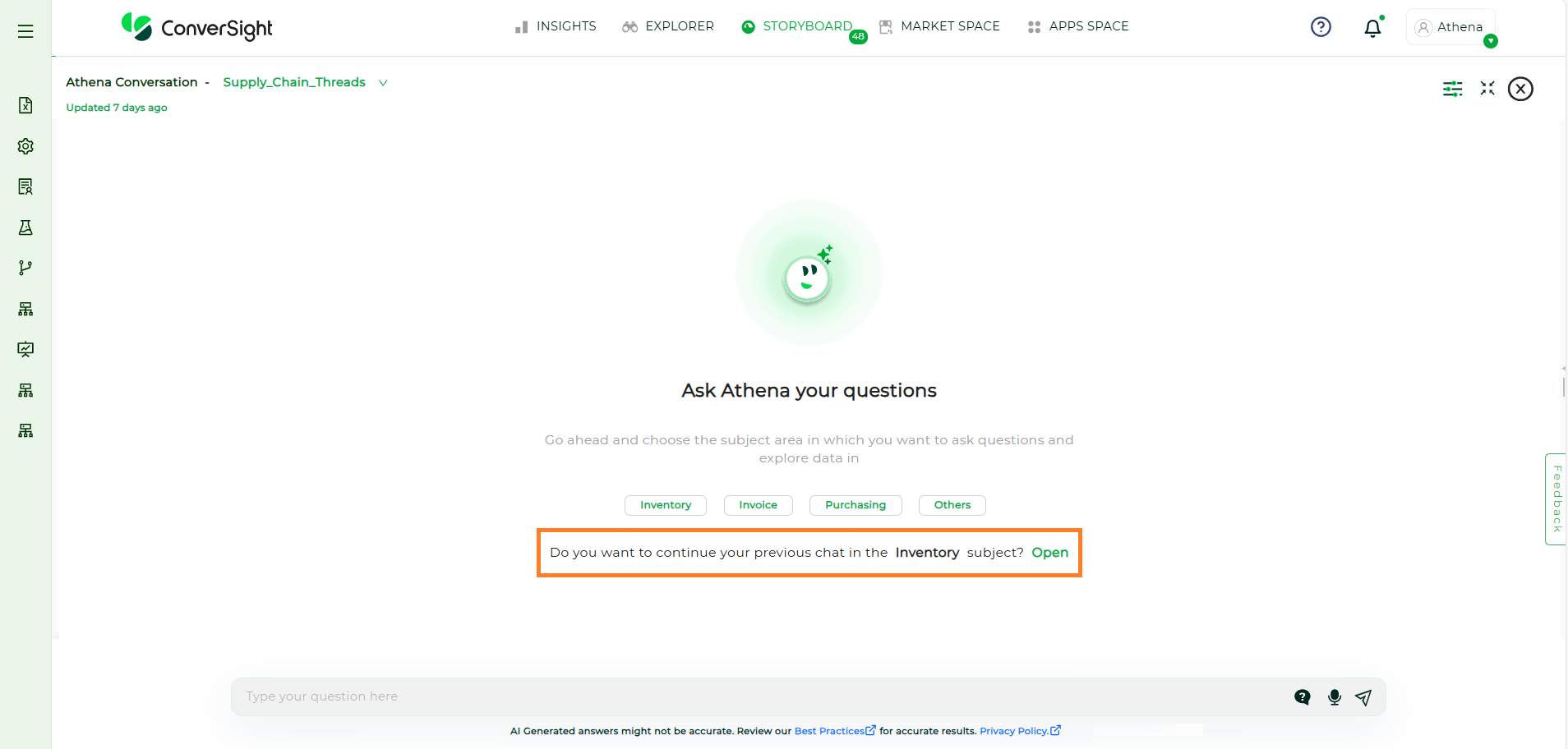
Users can view previous conversations related to a specific dataset by clicking the Open button. This also highlights the subject area previously used for those queries, helping users quickly identify the context of their past interactions.
Athena Chat#
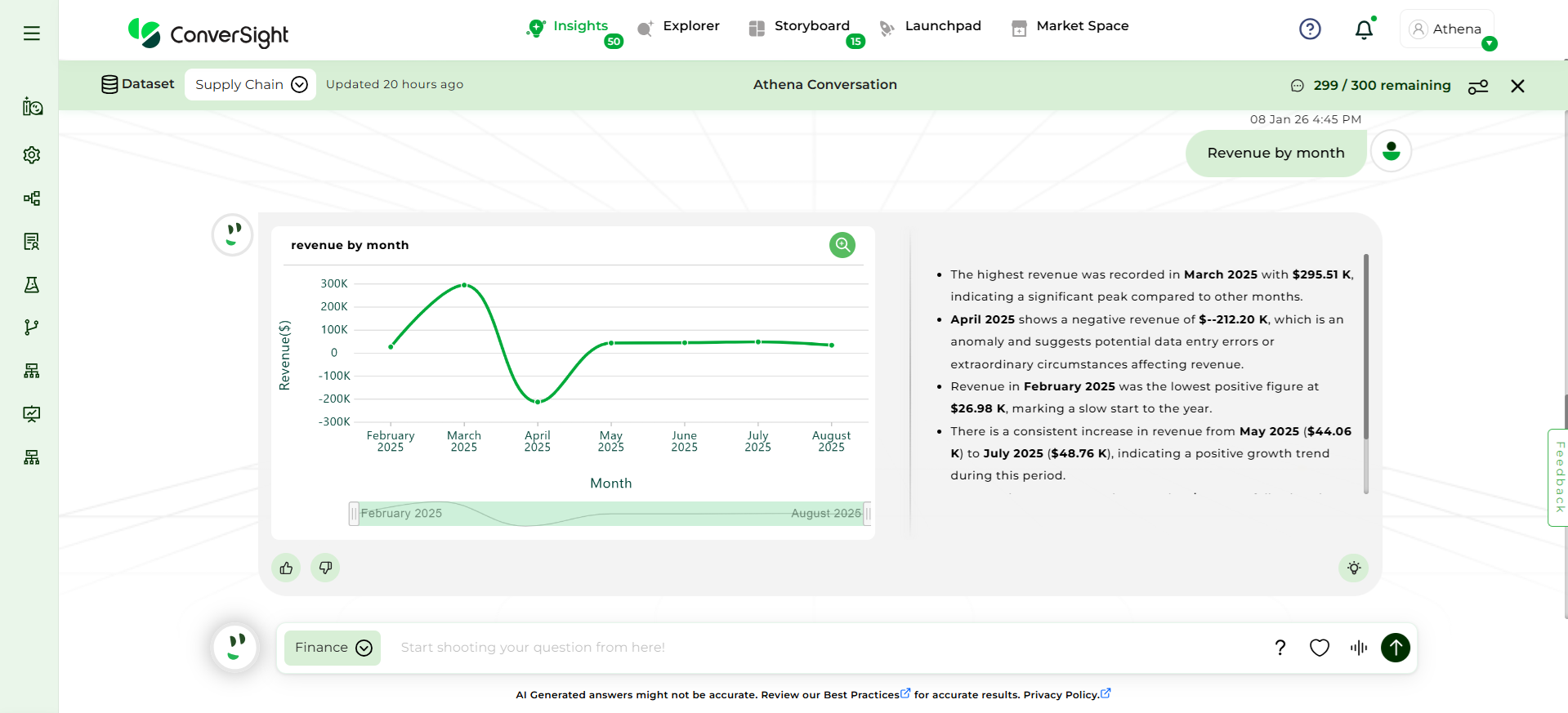
Step 3: After selecting the Dataset and Subject Area, you can begin asking queries in Athena.
Athena Chat#
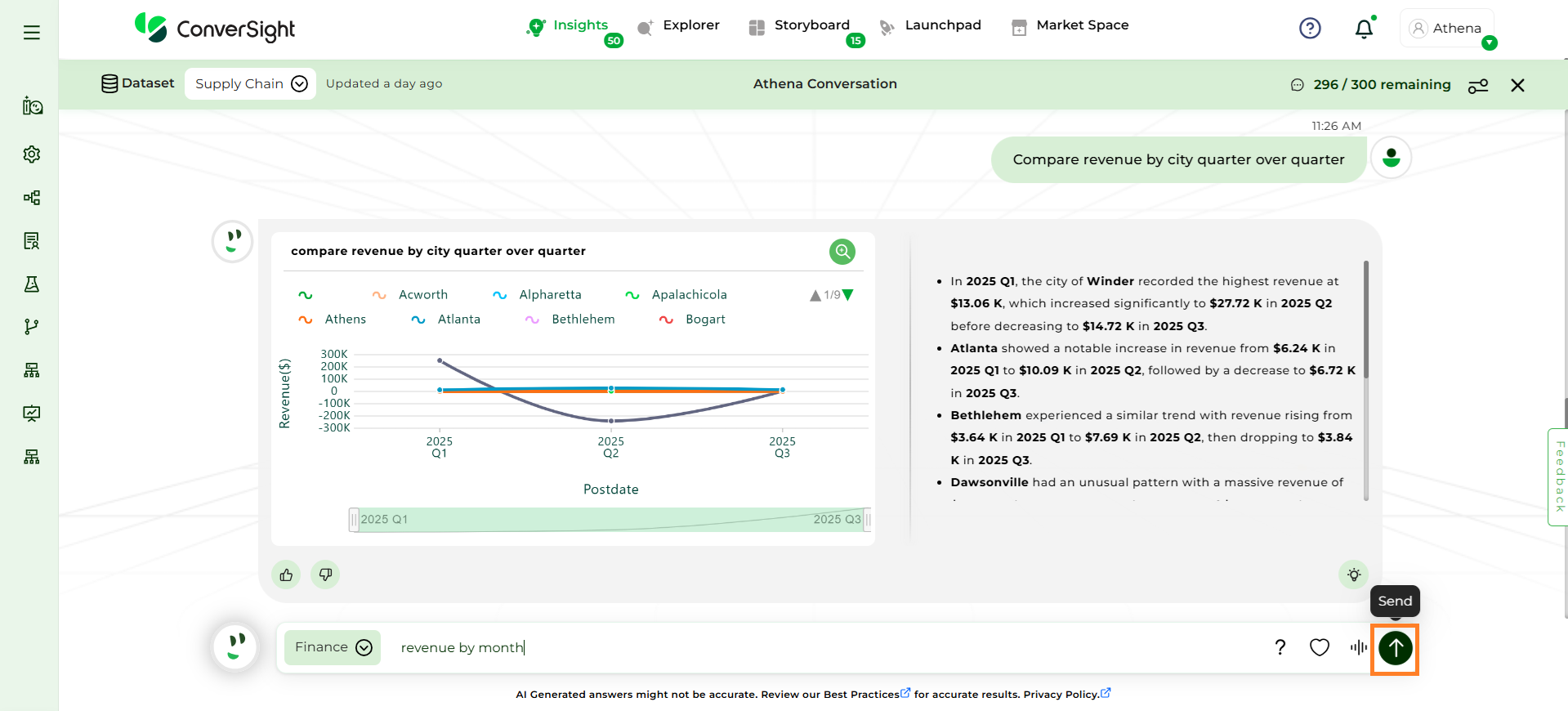
Step 4: Once you’ve entered your question, select Send to proceed.
Athena Chat#
Once you ask a question in Athena and receive a response, the next interaction is a threaded conversation.
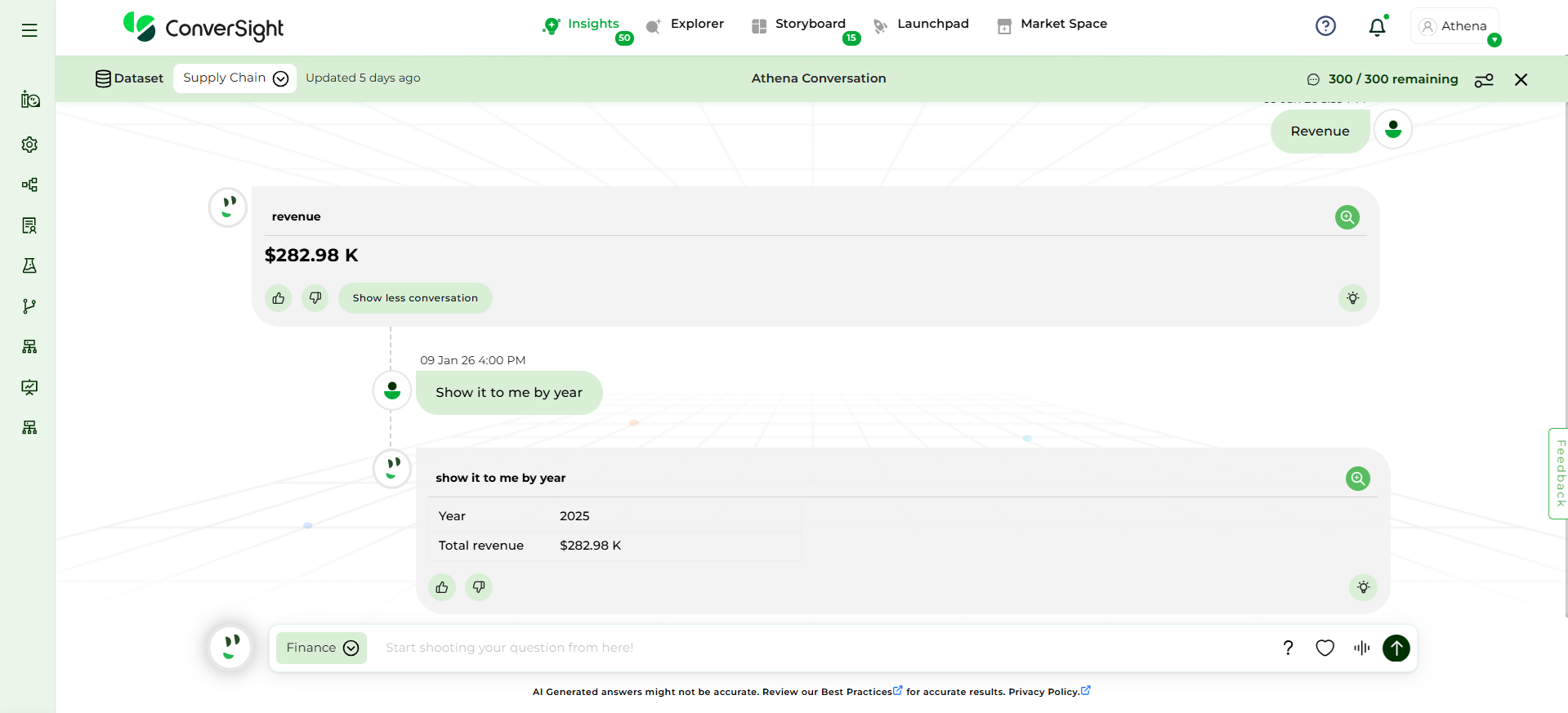
Threaded Conversation#
If you do not wish to continue, you can close the thread by clicking the Close Threads Conversation button.
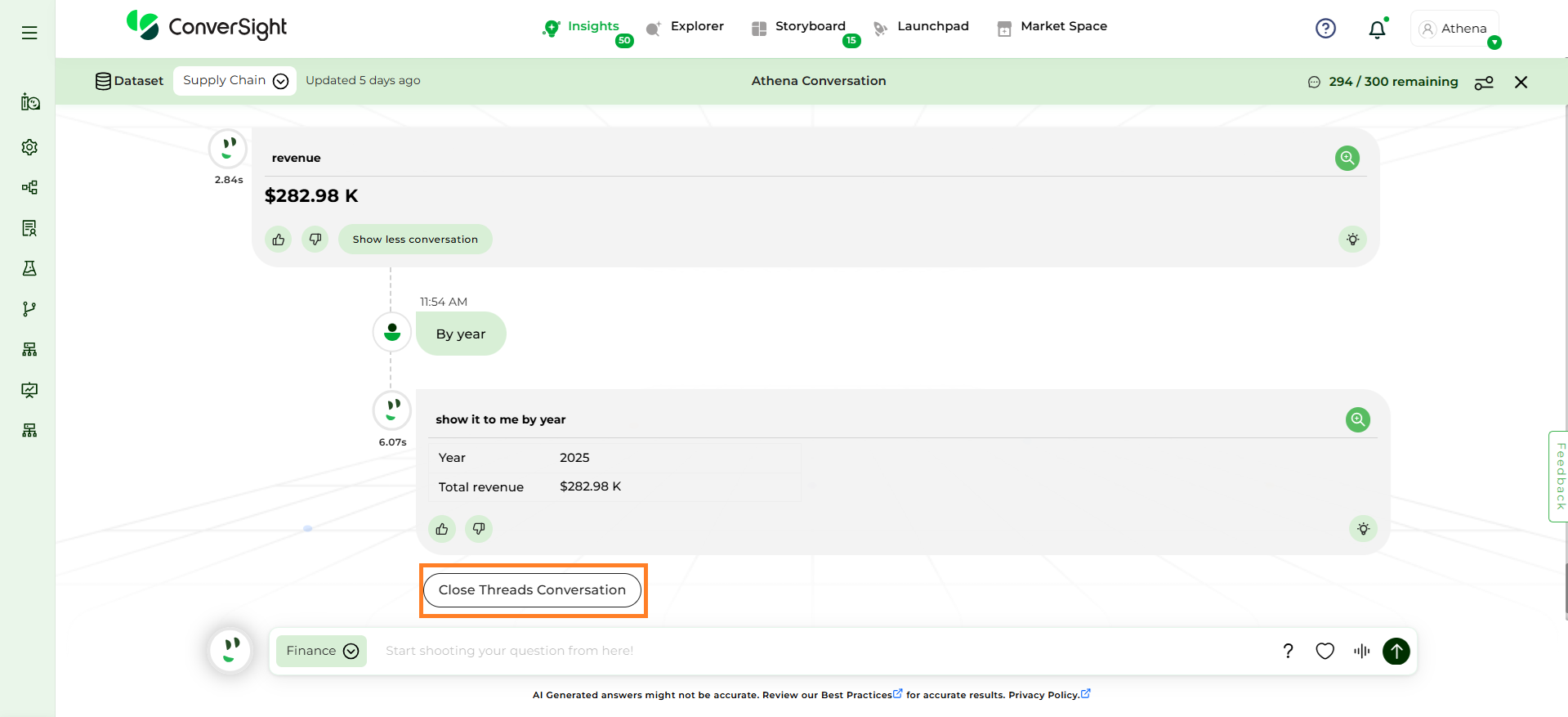
Close Threads Conversation#
To open a previous chat, select Show More Conversation to expand the view and display past conversations and to collapse the view select Show Less Conversation.
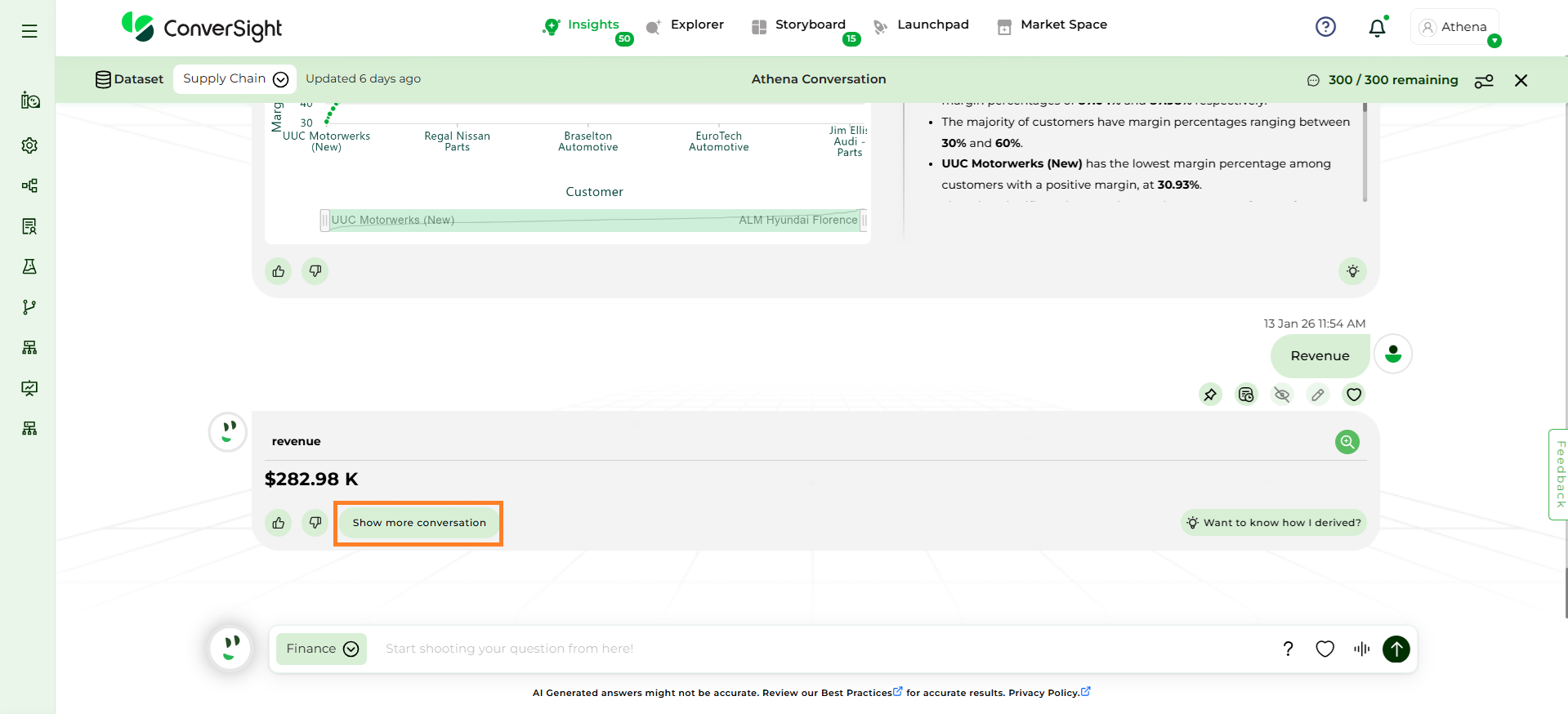
Show More Conversation#
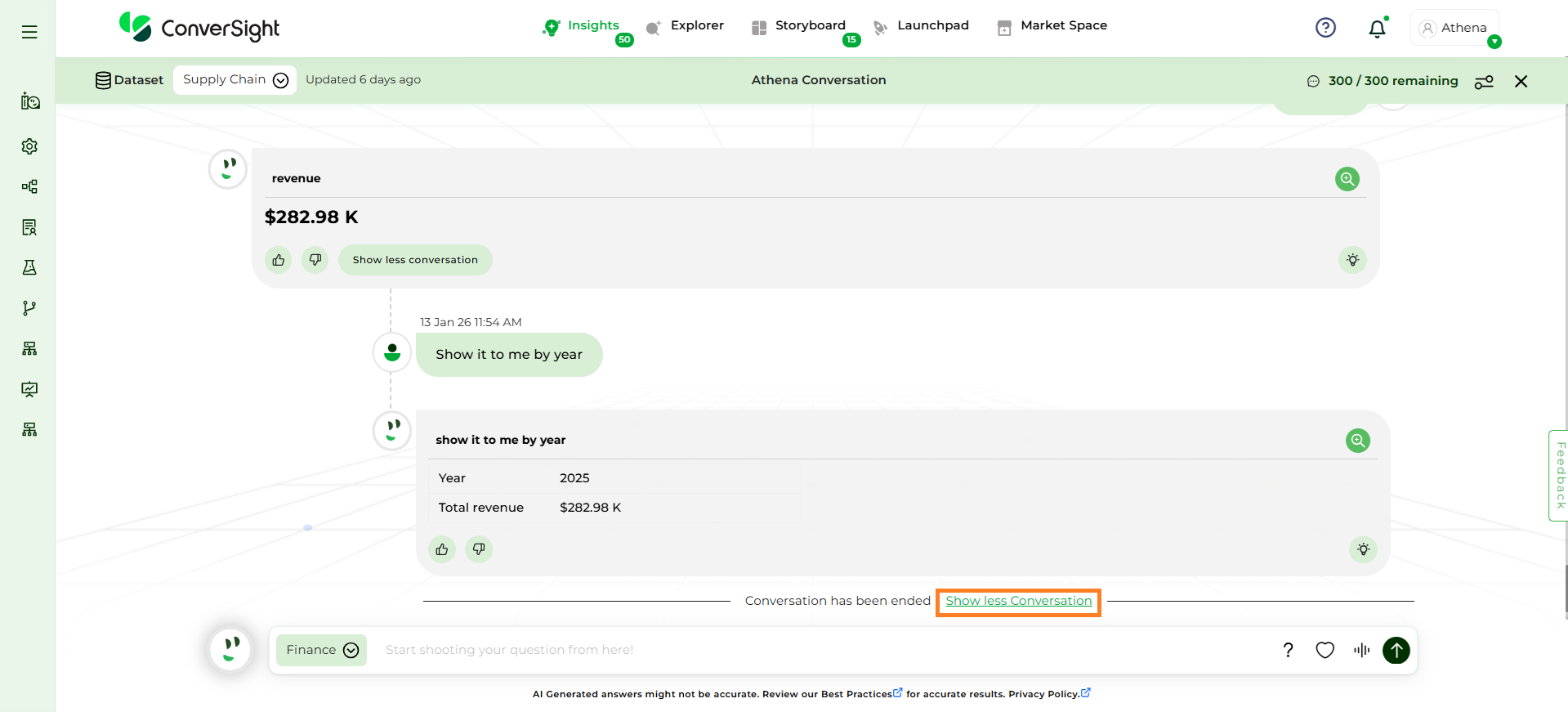
Show Less Conversation#
What kind of queries can I ask?#
With ConverSight GPT powered by the GPT API, revolutionizes the conversation experience, making it remarkably human-like. Users can now engage with Athena in a manner that closely resembles interacting with a knowledgeable colleague. This advanced technology enables natural and intuitive interactions, bringing a new level of sophistication to the user experience. With the integration of advanced GPT features, the ConverSight platform transcends expectations, delivering transformative insights, captivating narratives, actionable discoveries and lifelike interactions.
Some commonly asked questions are
How many orders have we received last week
What is my highest sales item count this year
Give me the top 10 orders by revenue
What is my YTD revenue
What is my total revenue for this year
What is my sales forecast for the next 6 months
Who are my top performing customers
Give me the revenue by quarter for 2018
What is the profit % for this year
Revenue by customer
Proper Format to ask Athena#
When asking a question to Athena, it is crucial to use the proper format to ensure an effective response. Here are the guidelines:
Focus on Domain-Specific Queries: Athena is optimized for questions related to the domain or business area you have selected. Ensure that your queries are specific to this chosen domain for accurate results.
Use Configured Terminology: Ensure that the terms and jargon in your questions are configured in the Subject Matter Expert (SME) page. Athena requires these configurations to understand and process your queries correctly.
Ask Comparative Questions: Users can ask comparative questions to analyze differences between data points, periods or categories. For example, you might compare sales figures between two months, evaluate performance across different regions or examine trends over time.
Incorporate Special Queries: When dealing with unique analytical requirements, include special queries to address specific data needs. Special queries are particularly effective for handling customized analyses and in-depth explorations, allowing you to tailor your questions for more detailed and specific insights. Since special queries can be complex, it is recommended to use only one special query per Athena request to ensure clarity and accuracy.
Configure Relationships for Multi-Table Queries: For queries involving columns from multiple tables, ensure that a Relationship is configured properly in the SME page to ensure accurate results.
Let’s look into the main features of Athena one by one.
Help#
The Help feature offers a list of all available data elements, including table and column sources. Additionally, it presents the Frequently Asked Questions (FAQ) on the right side of the chat window.
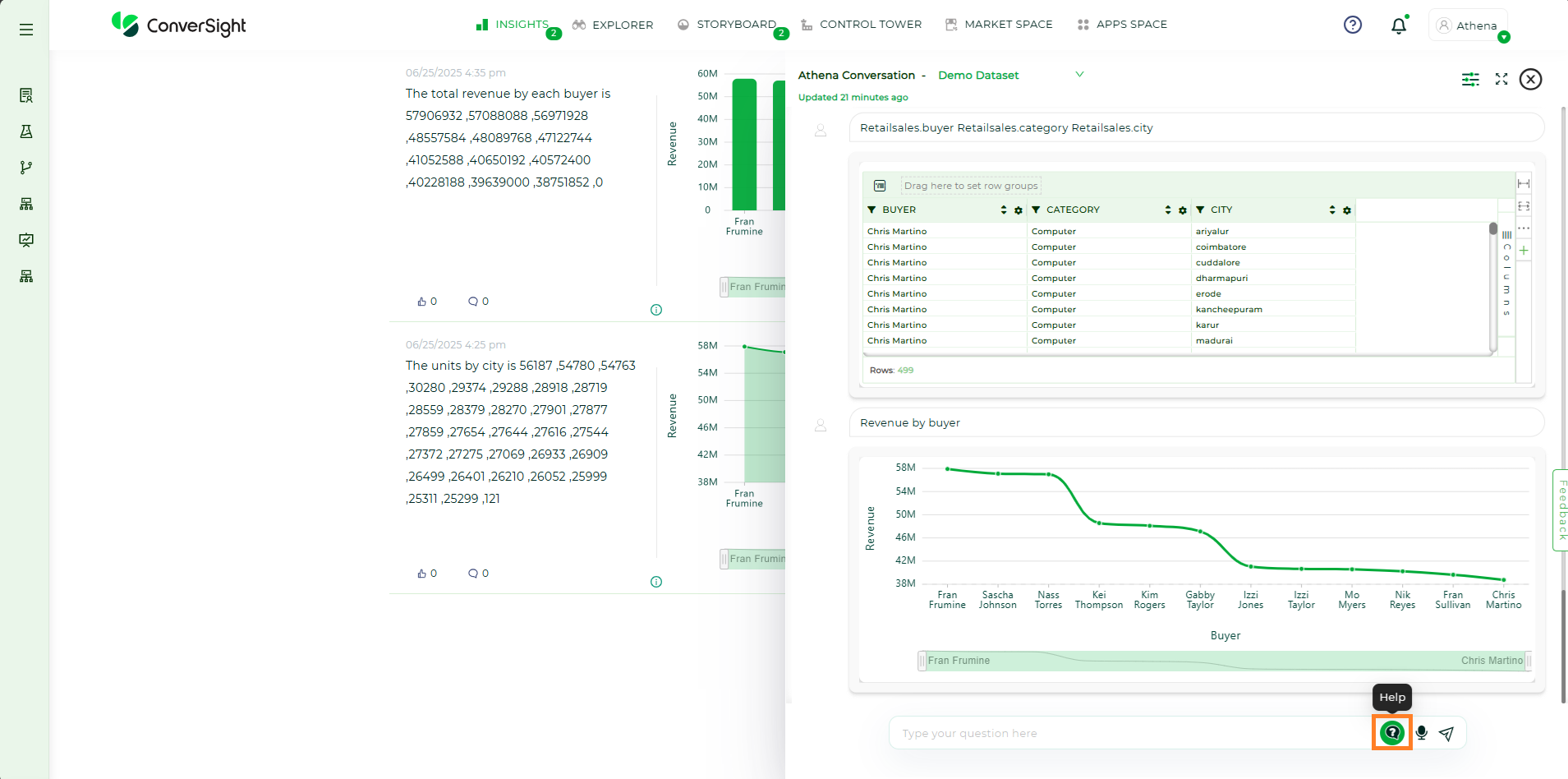
Help#
Ask by Voice#
The query search bar in the chat window has a microphone symbol, which you can use to verbally ask your query. Once the voice icon is clicked on, it starts listening to your queries and you will receive the results either by table or chart.
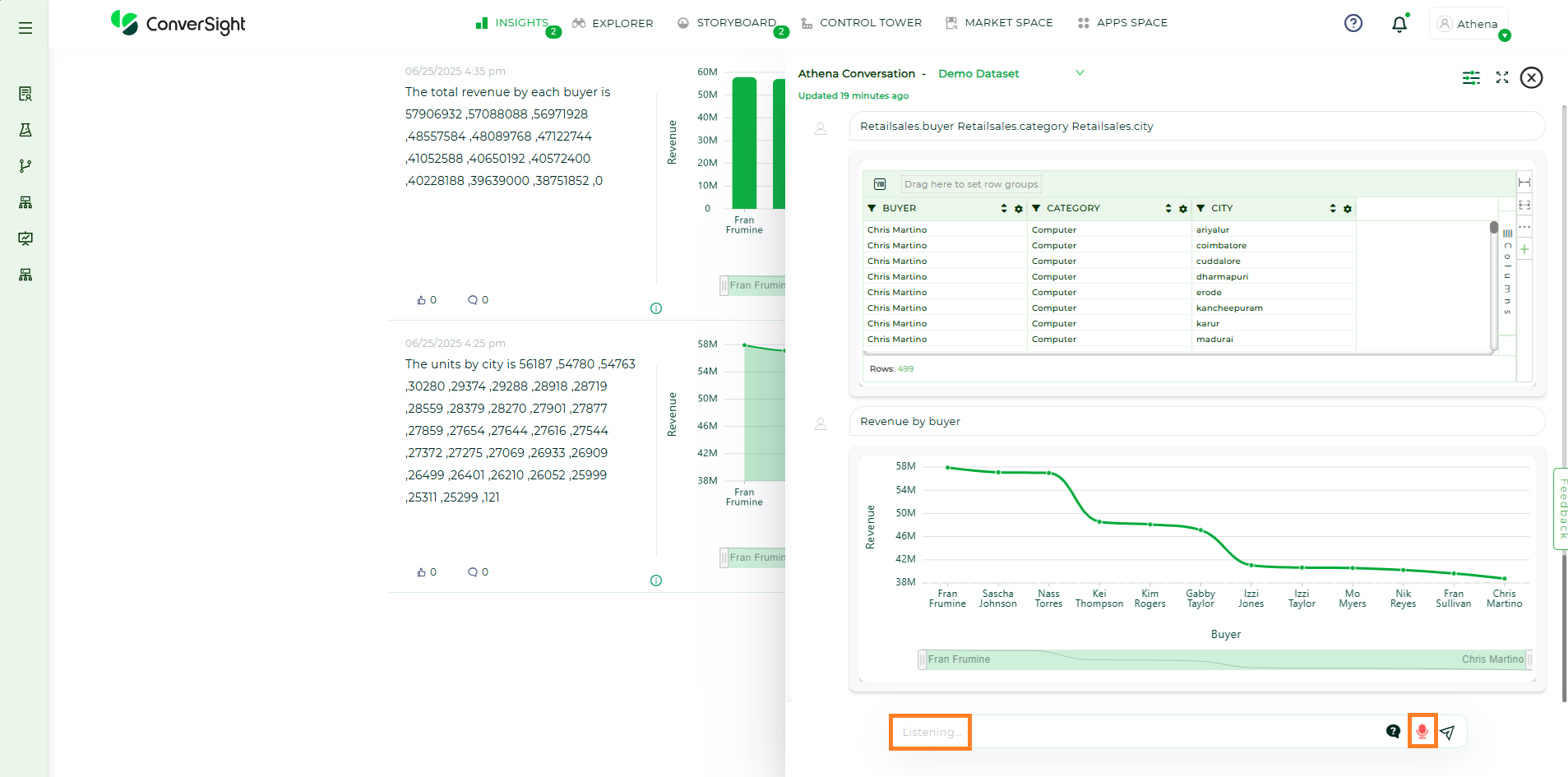
Ask by Voice#
Comparative Questions#
Comparative questions are added as an extra in the features available through ConverSight. In the Webchat page, you can ask a query, like compare revenue by city quarter over quarter. Insights will give you an answer for the same query.
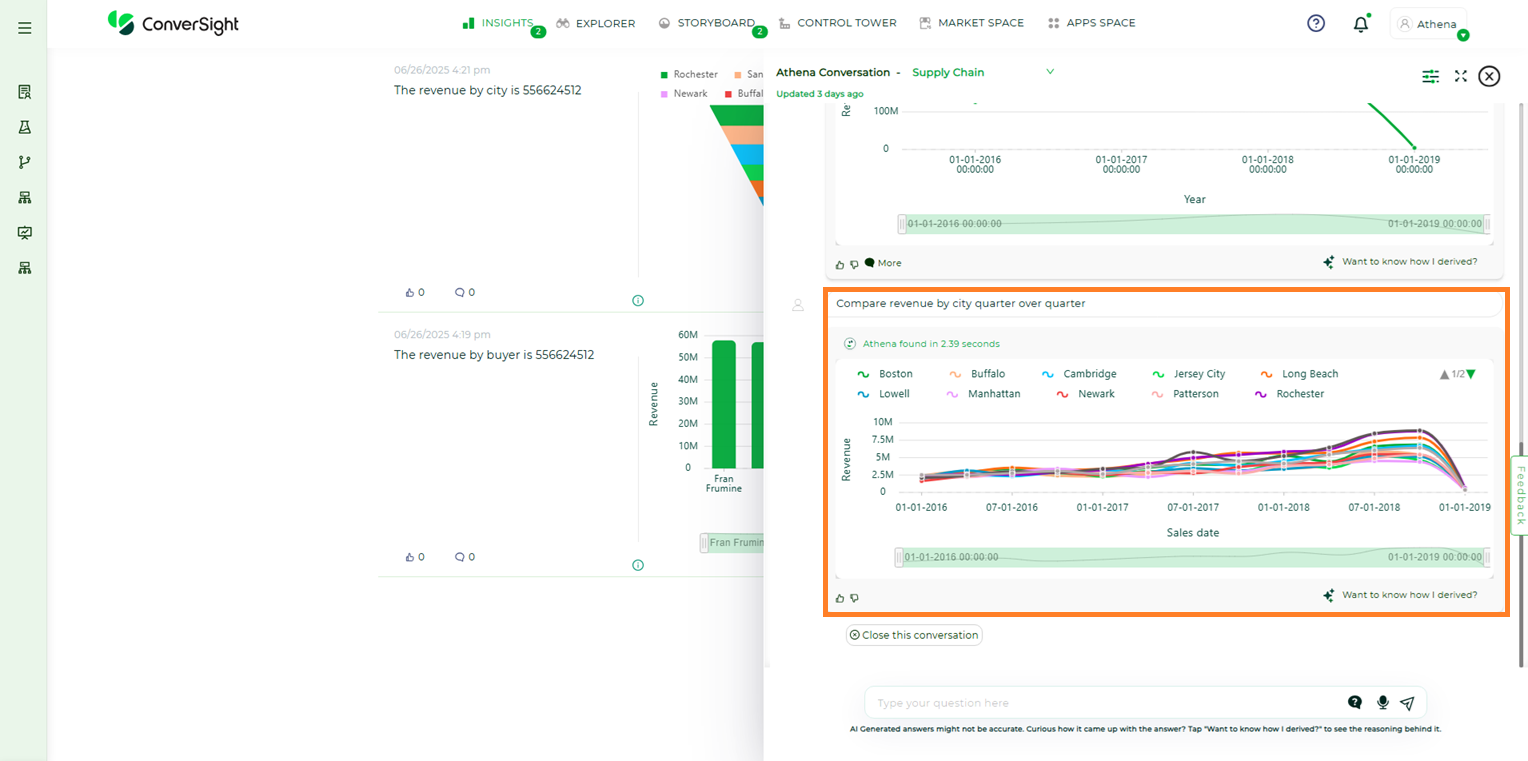
Comparative Question Example#
Suggestions#
Search suggestions include complete recent searches that are similar to the search you are fabricating.
Search suggestions are relevant to the data and are personalized to your search behavior. ConverSight learns over time what columns are most important to you and your company as a whole. It then uses this knowledge to rank the search terms it offers.
NOTE
Suggestions are available only for V1 Datasets.
ConverSight keeps usage statistics on the frequency of search terms in its local cache. If you frequently use type terms related to finance or to a particular product, ConverSight provides you with related suggestions more frequently. Using this information, frequently used terms and phrases are offered in search of suggestions more often than those that are not commonly used.
For example, if you look for type of revenue a lot, you will get more suggestions related to it and it’s easy to predict your search.
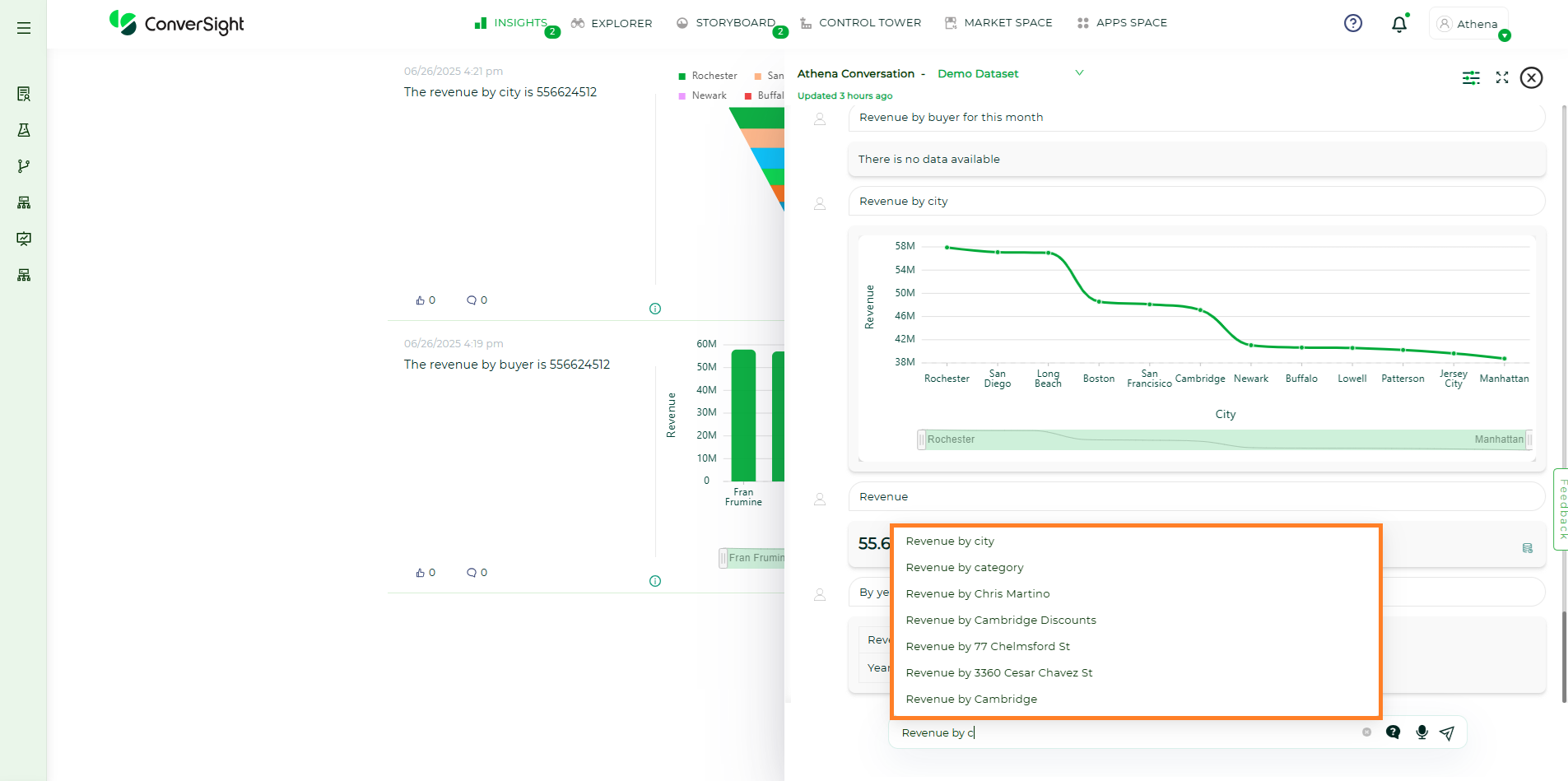
Suggestions#
Context Queries#
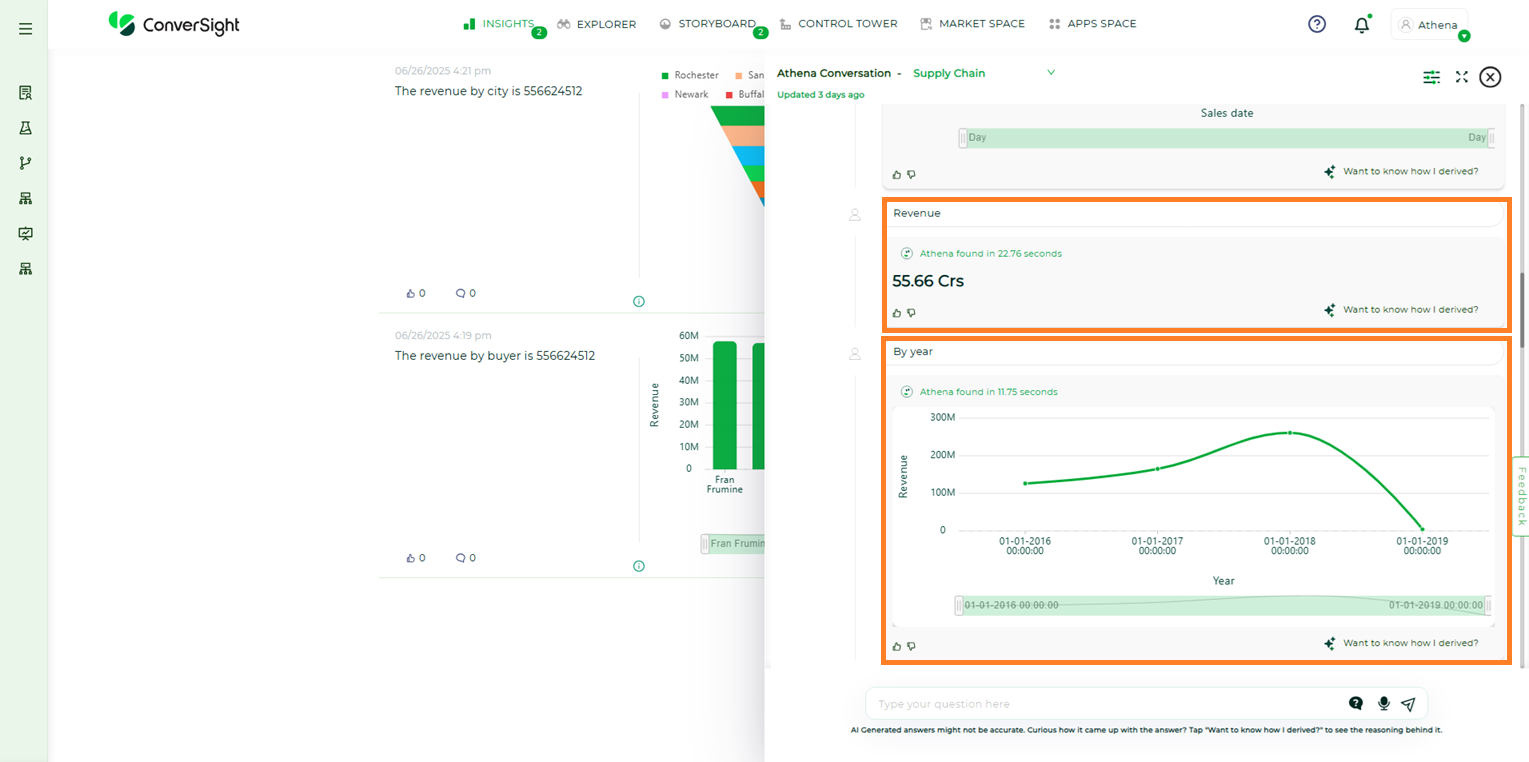
Context Queries are the parts of our queries and they are the questions asked to follow the query.
For example, if you ask for the revenue , it will show you the total revenue. And when we use a follow up query by year, you will get a result for revenue by year.
Context Queries#
Did You Mean#
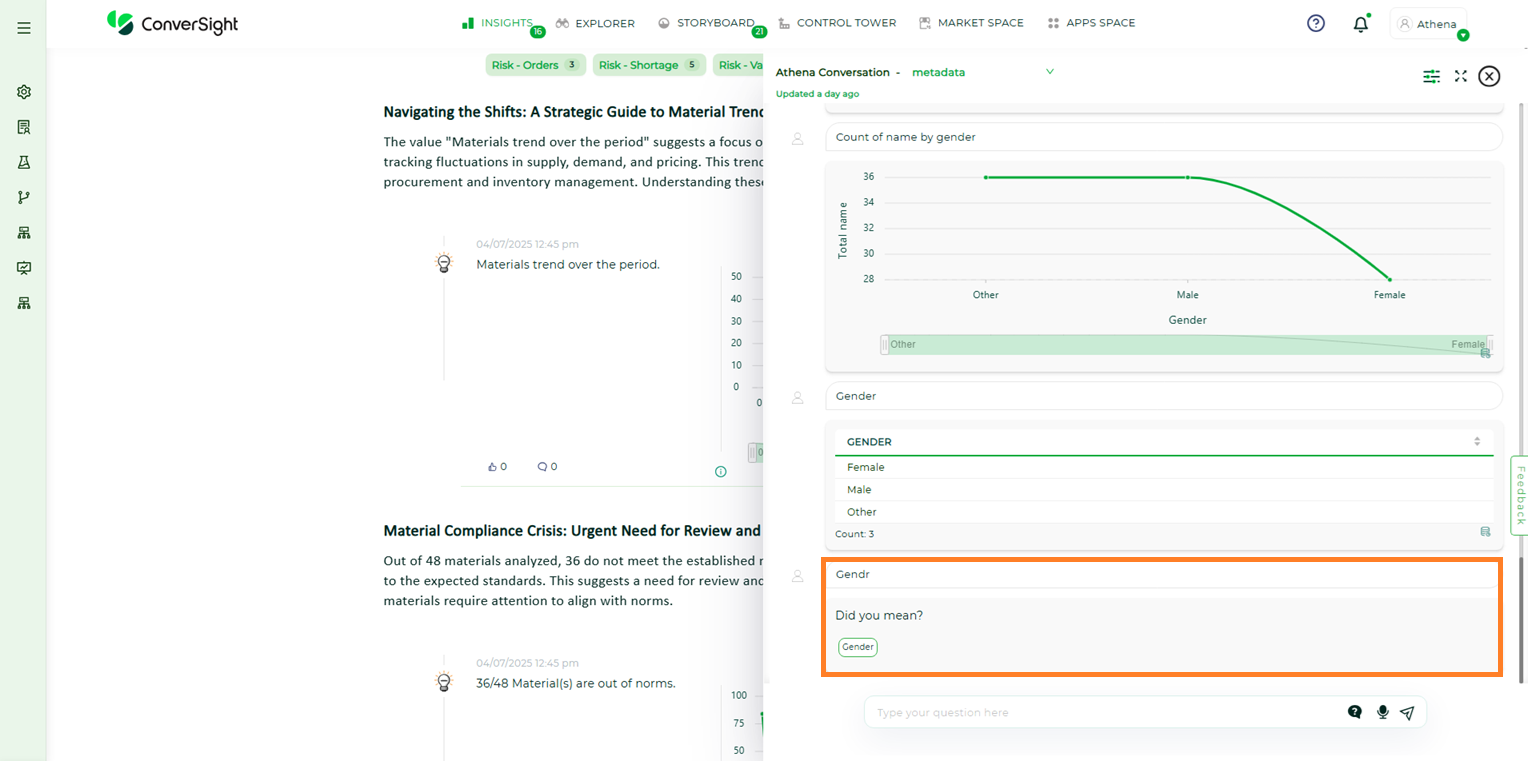
Did you Mean features are mainly useful for instances where spelling mistakes occur. It will show you the suggestions and you can select the query, hit enter and continue to ask the query.
Did You Mean#
Follow up Queries#
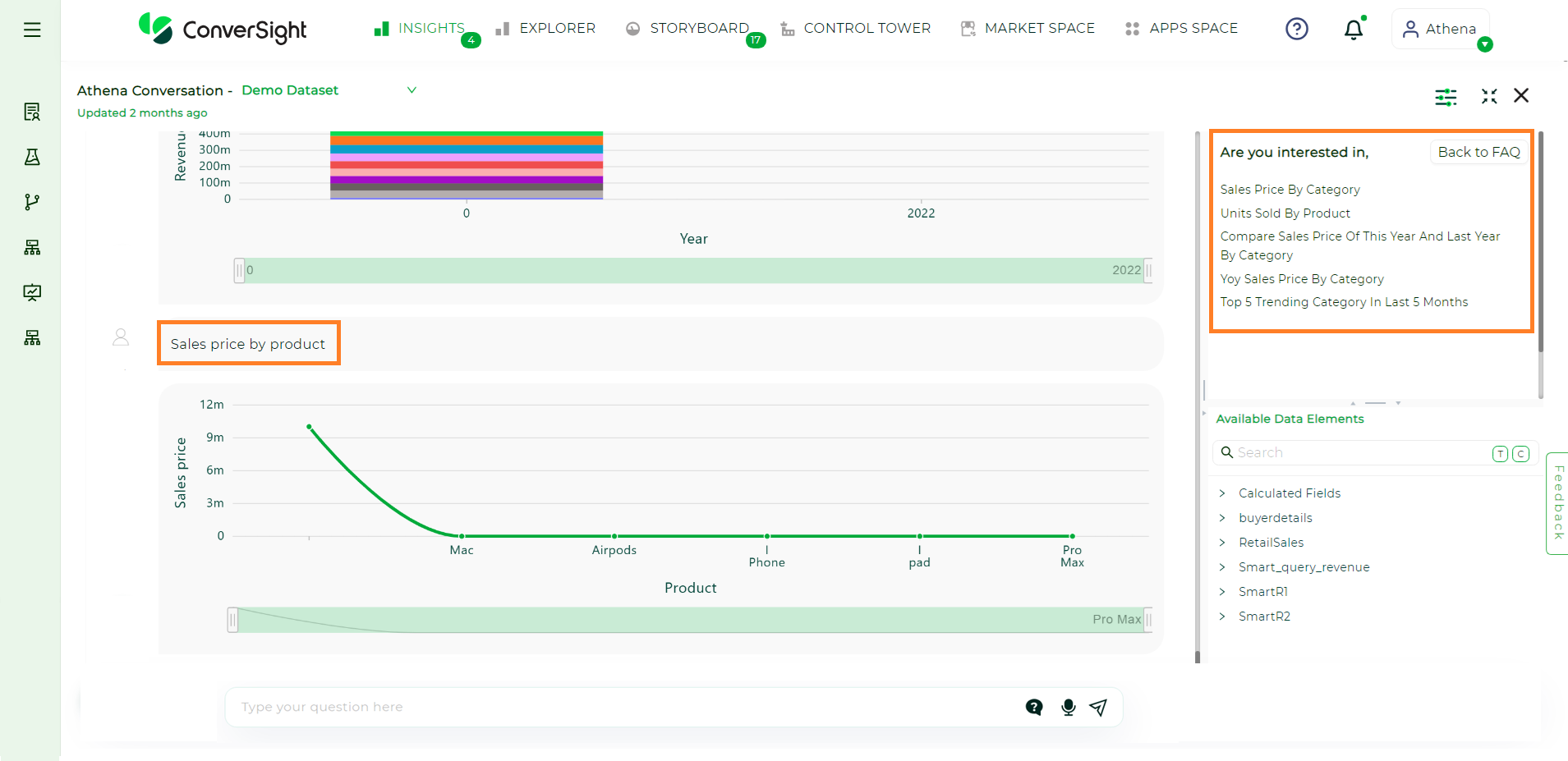
When you ask a query, the query related questions will show up in the suggestions section upon clicking the Help icon. For example, if you search for sales price by product, its related questions will show up, such as Sales price by category and etc.
Follow Up Queries#
NOTE
Follow Up Queries are available only for V1 Datasets.
Frequently Asked Questions#
Frequently Asked Questions (FAQ) are displayed on the right side of the chat window when you click the Help icon. These questions represent the most commonly searched queries by other users in Ask Athena.

FAQ#
NOTE
FAQ's are available only for V1 Datasets.
Smart Column#
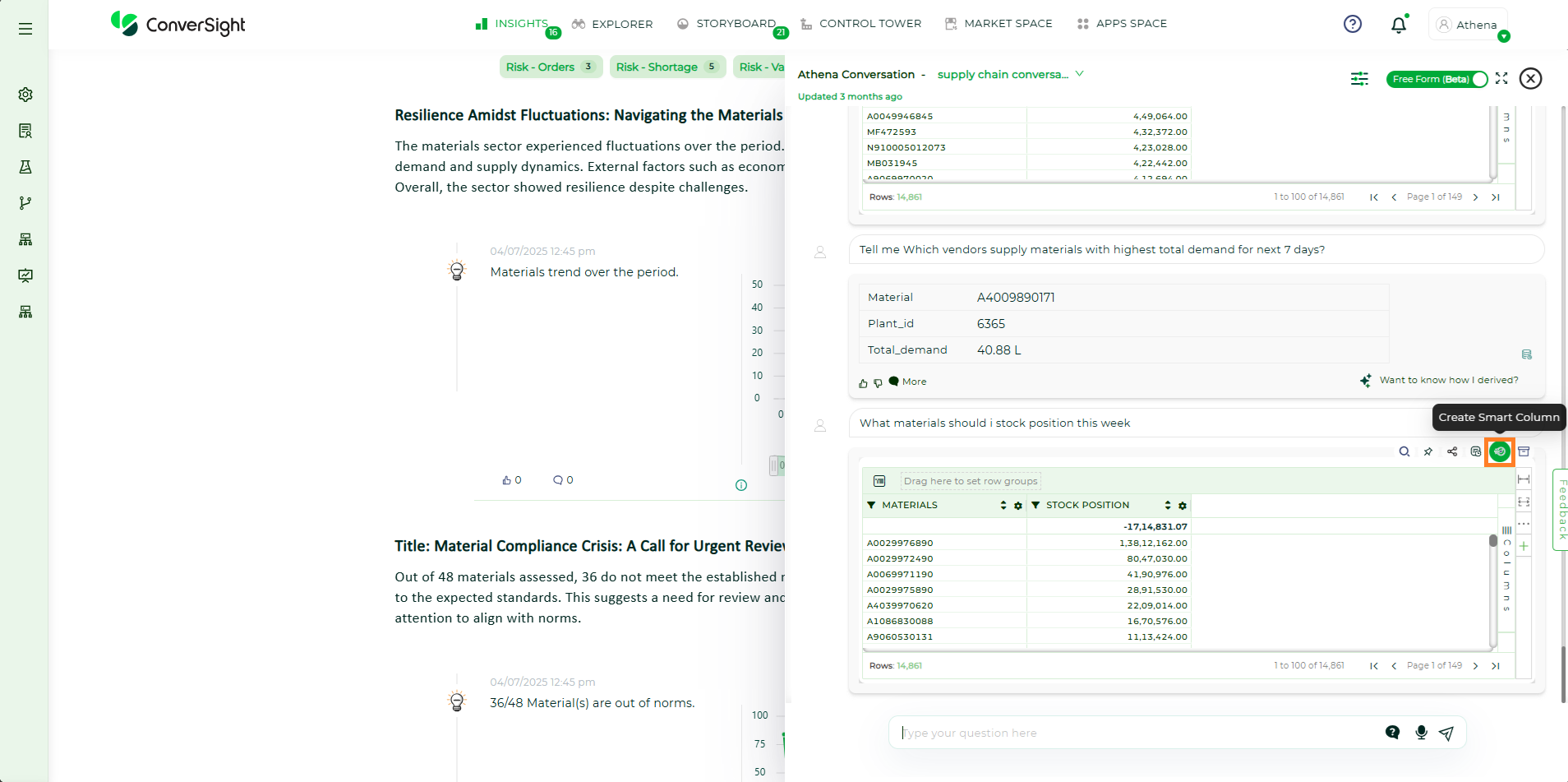
A Smart column is a summary field used to consolidate and provide insights from columns of various tables within the dataset. Users can consolidate all necessary columns in one query, name the query and save it as a Smart Column for future use. To work and know more about these columns you can refer Smart Columns.
Smart Column#
To watch the video, click on Smart Columns using Athena.
Drilldown#
A drill-down report is a report that allows users to navigate to a different layer of data granularity by navigating and clicking a specific data element on a web page or in an application. Drill down allows users to explore multidimensional data by navigating from high level information to a more detailed look.
Drilldown#
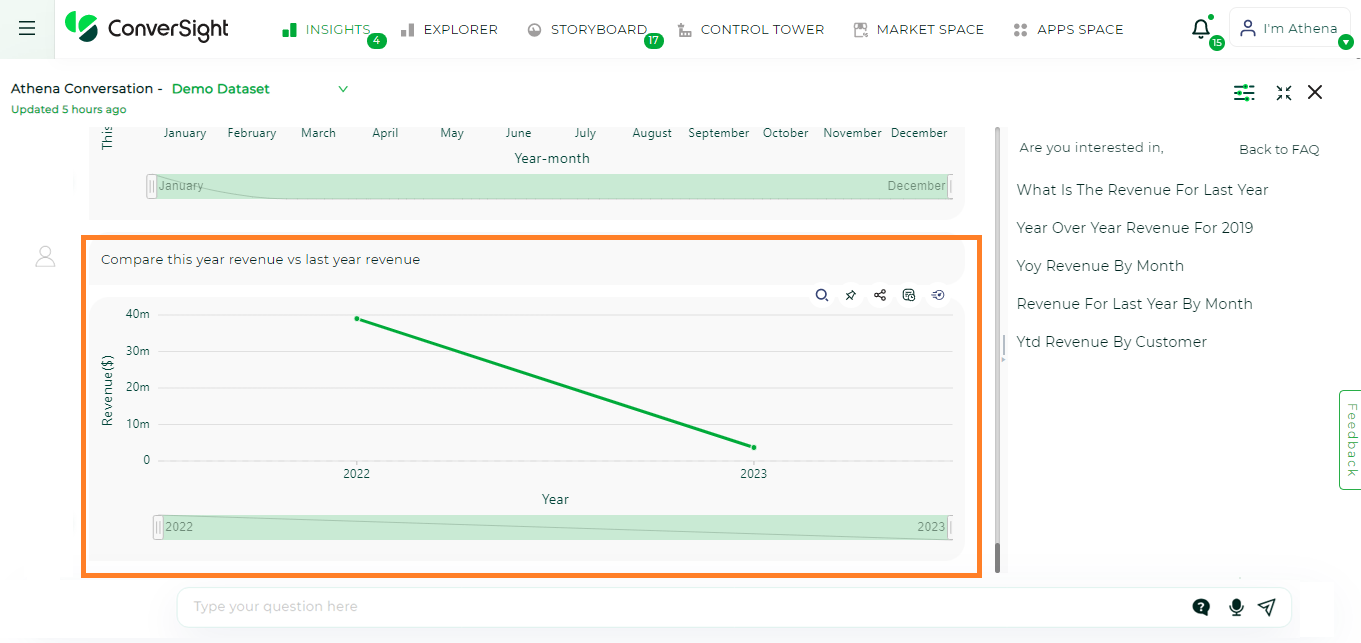
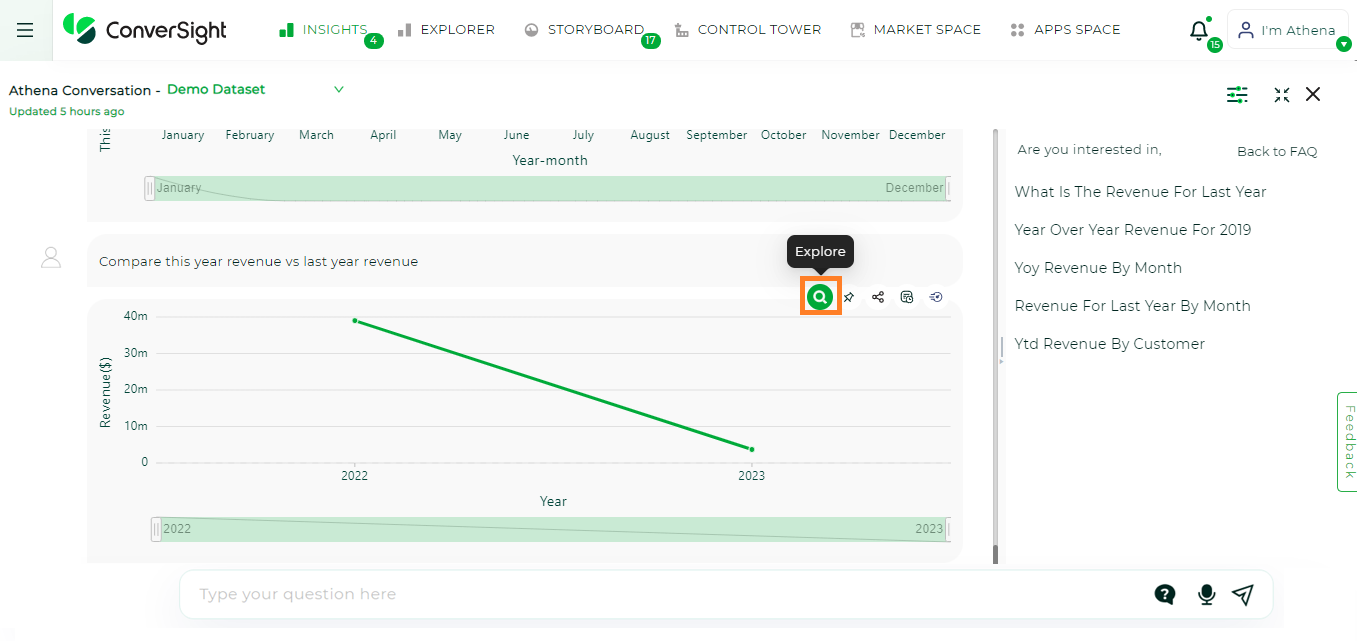
You can use, explore icon on the webchat result and view it on full screen.
Drilldown#
For example, when you query “Revenue by month”, you will get a chart with the correct information based on the data provided.
Drilldown#
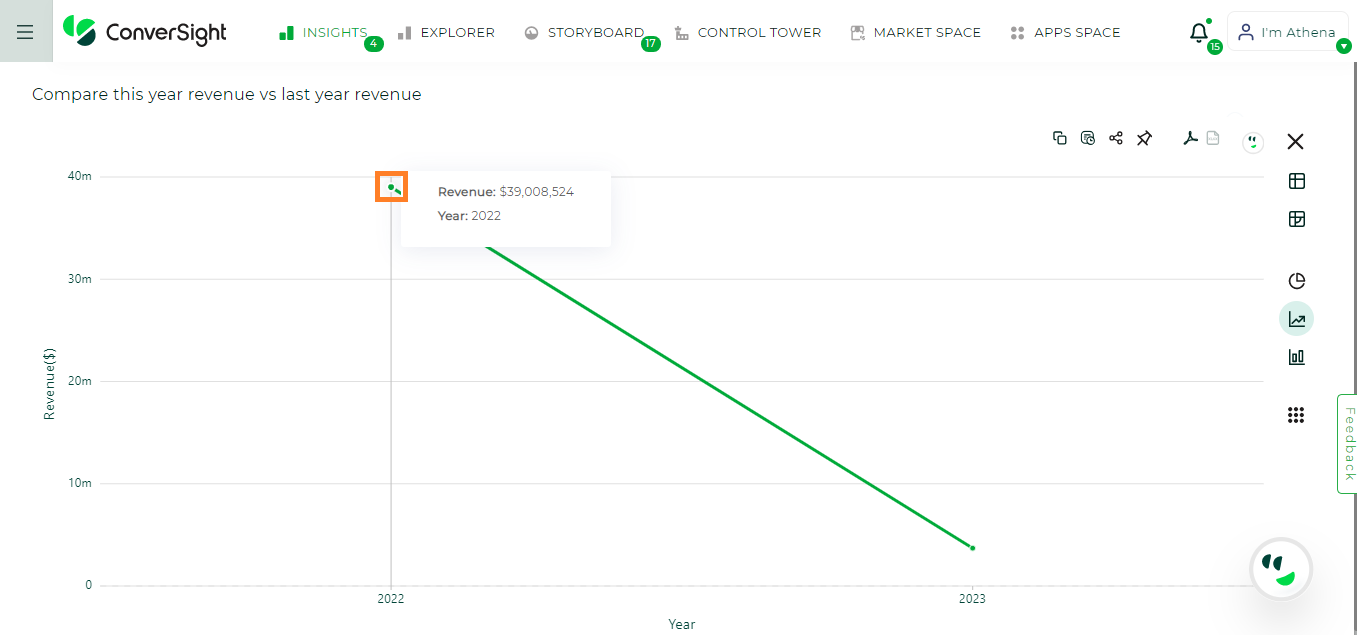
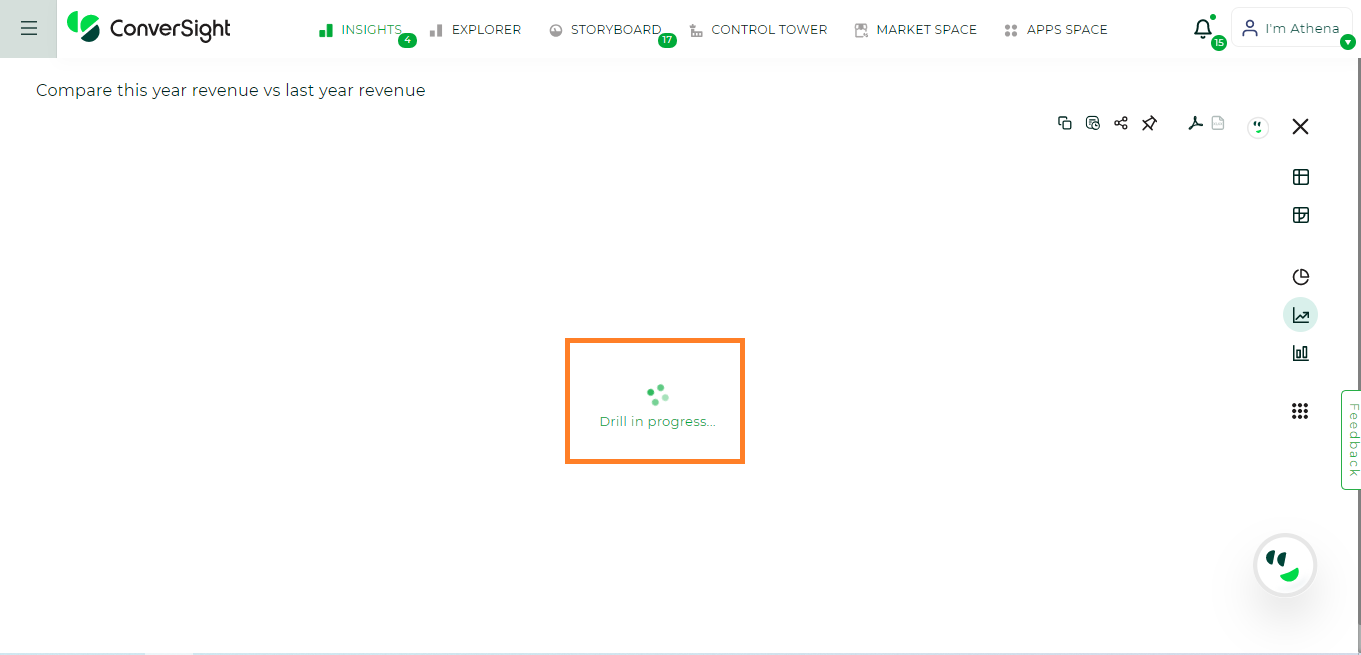
If you would like to see more about just one month, click the dot point on the month of your choice and it will move to an in-depth explanation of the month you want.
Drilldown#
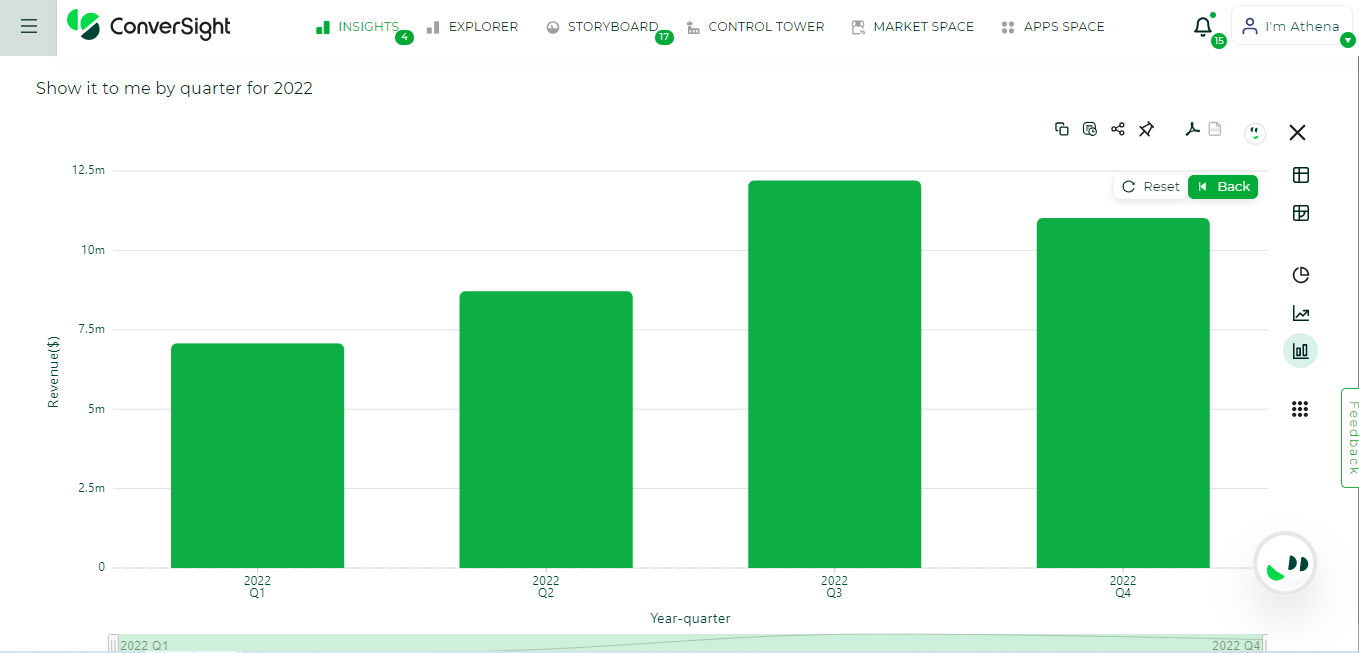
Drilldown#
To learn more about how drill-down works, Click Here
Preferences#
Users can customize their Athena web chat view for their own use through the Chat History dropdown by selecting the Preference option.
Successful: Displays all successfully generated insights.
Failed: Lists all failed insights in the web chat.
All: Presents both successfully generated and failed insights in the conversation.
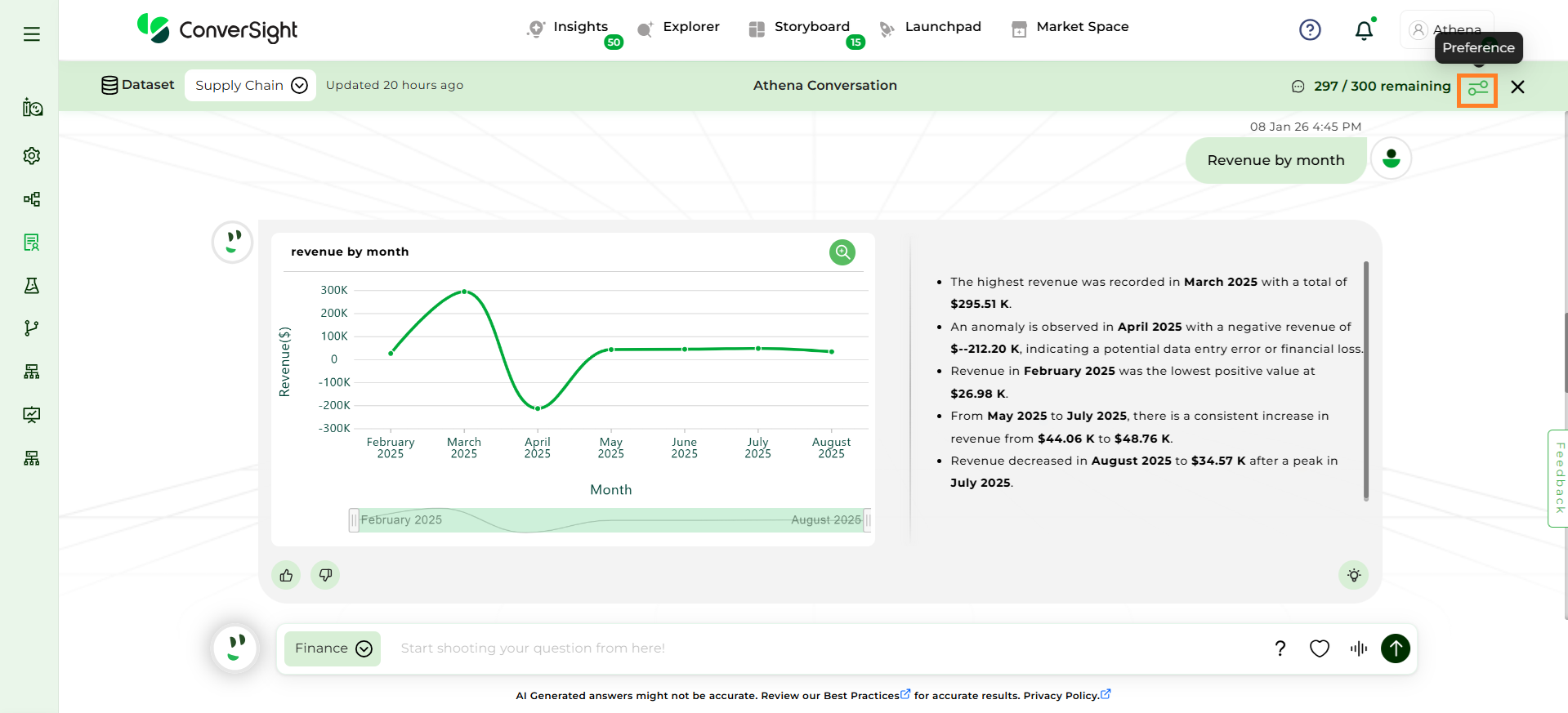
Preference#
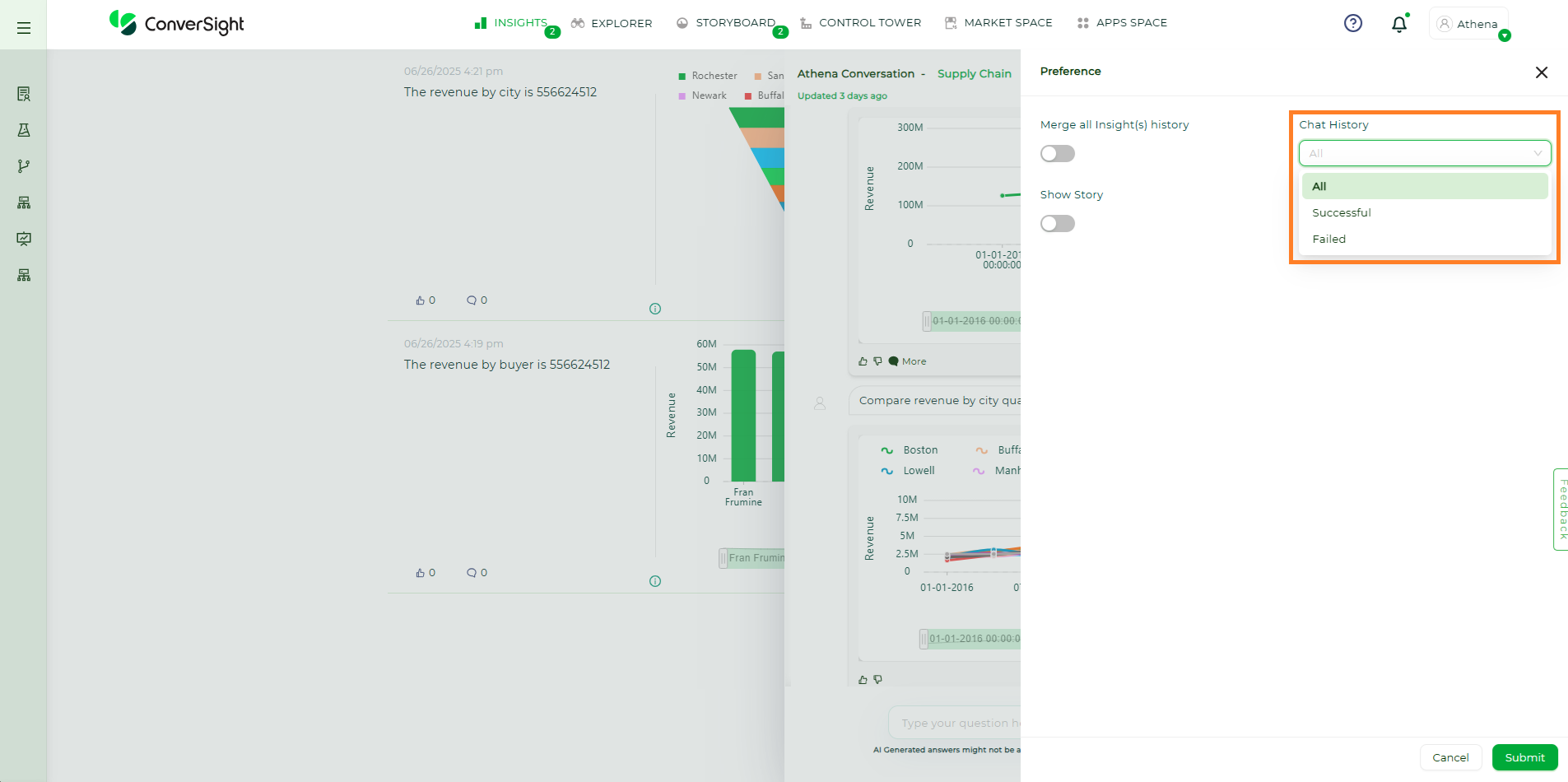
Chat History#
Show Story#
Users can enable the Show Story toggle to activate the story generation feature in Athena Webchat. This setting is specific to each dataset and is disabled by default.
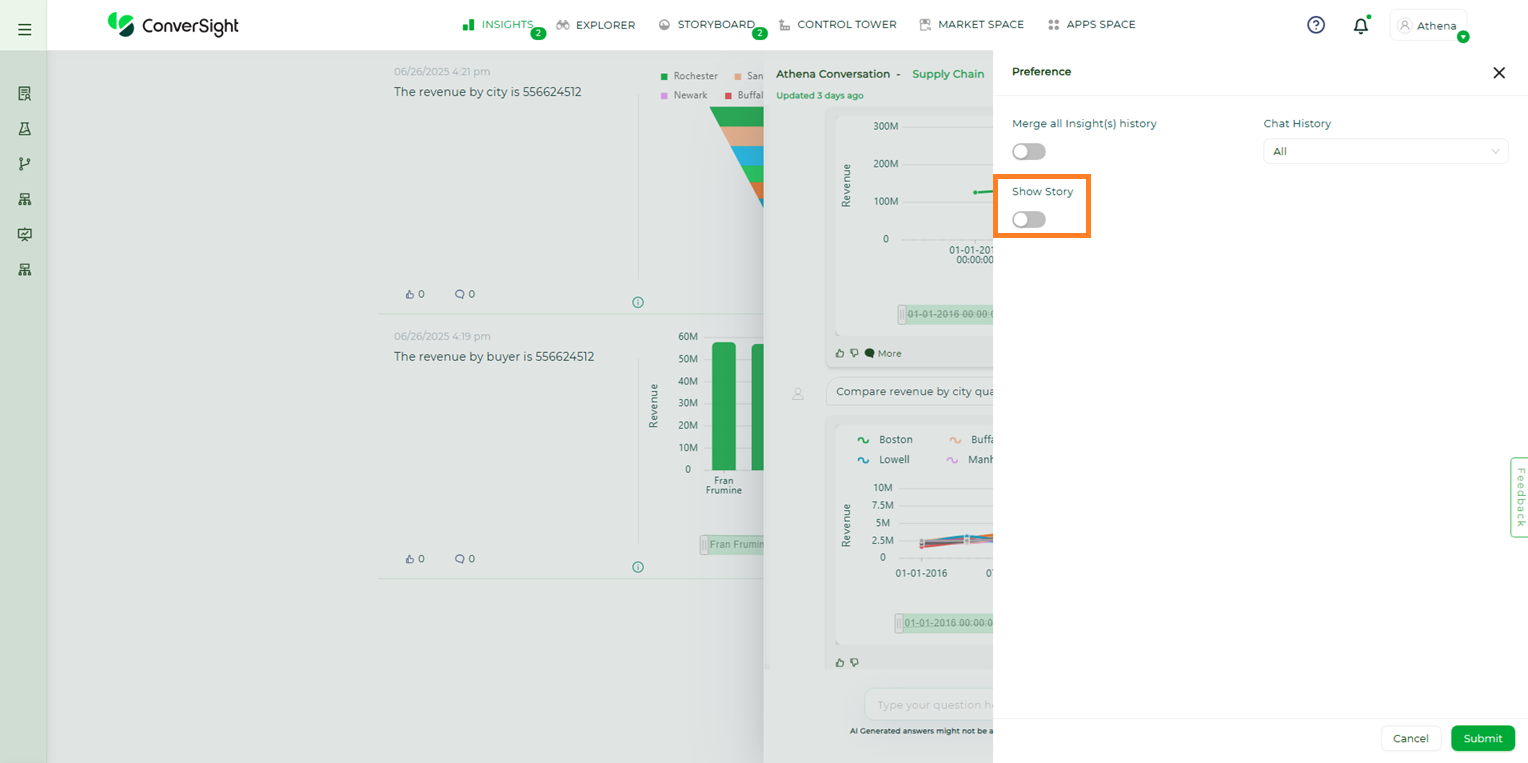
Show Story#
Story generation is restricted when the column count or value count exceeds 5,000
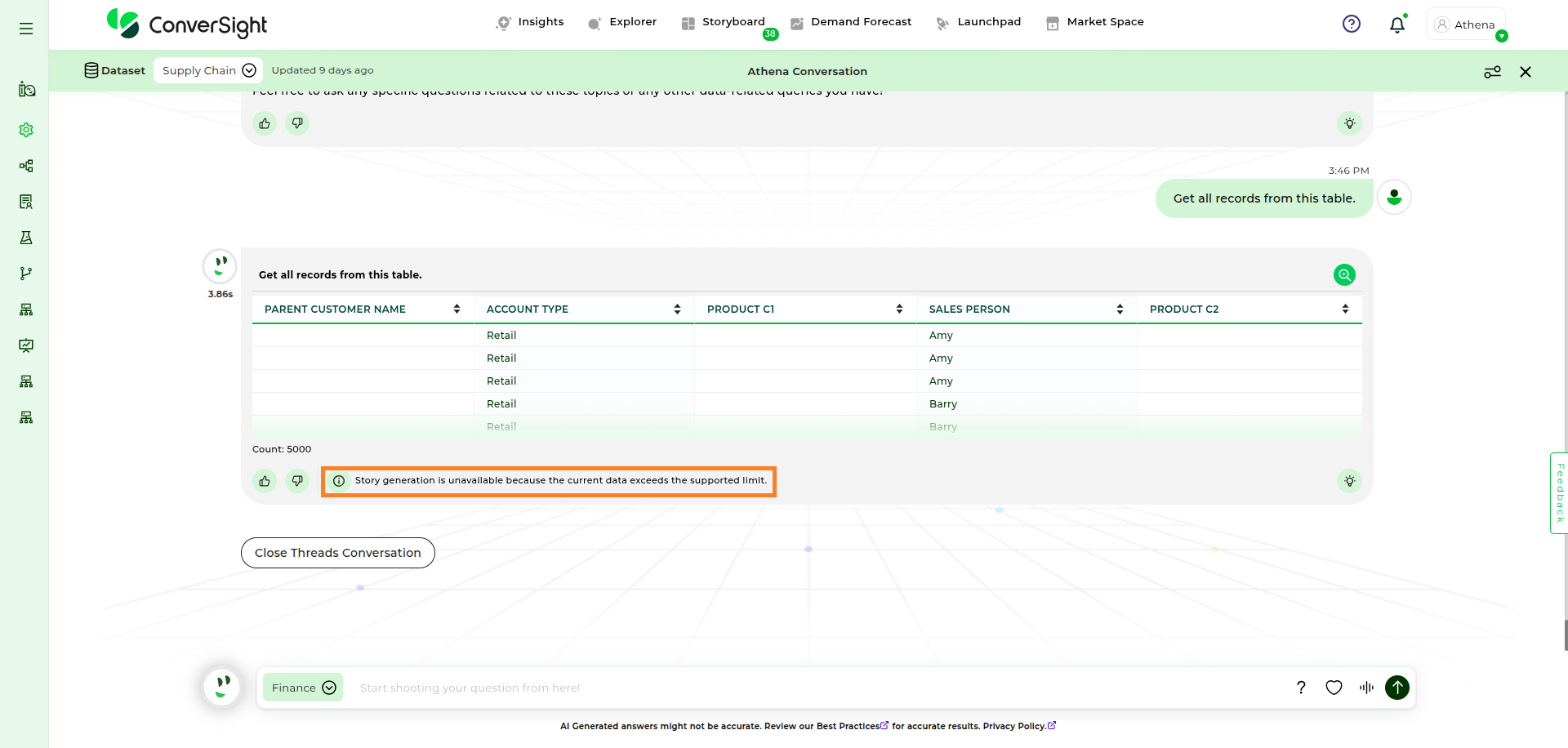
Show Story Restriction#
Trained GPT Utterances#
Trained GPT Utterances is a tool that enables users to monitor all the expressions learned by the GPT model. By tracking these trained utterances, users gain insights into the model’s comprehension, enhance performance through targeted adjustments and ensure a more refined and contextually accurate language generation. This tool provides a valuable resource for optimizing the model’s language capabilities and improving its overall functionality.
Accessing Trained GPT Utterances#
Here is a comprehensive step by step guide for effectively utilizing the Trained GPT Utterances tool:
Step 1: Access the subscribed tools by clicking on the Launchpad.
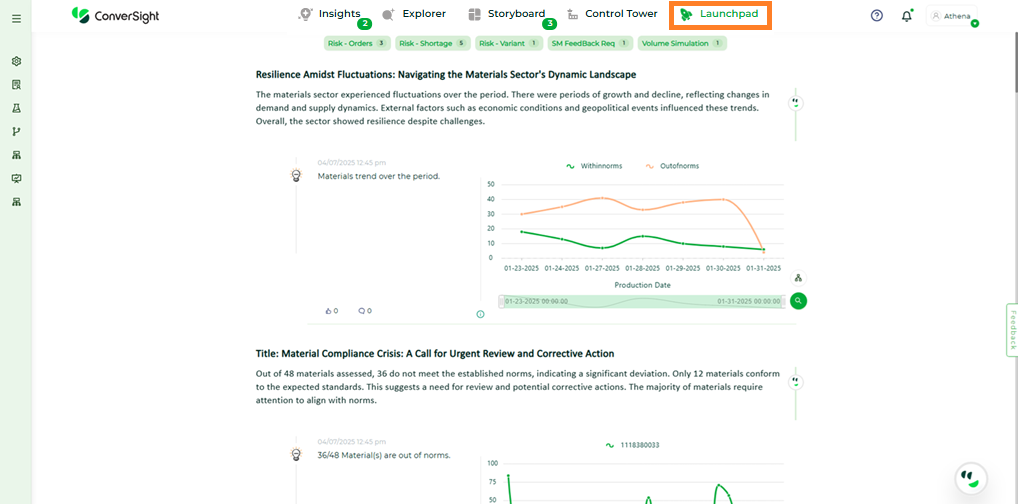
Launchpad#
Step 2: Select Applications to access all available tools from Launchpad.
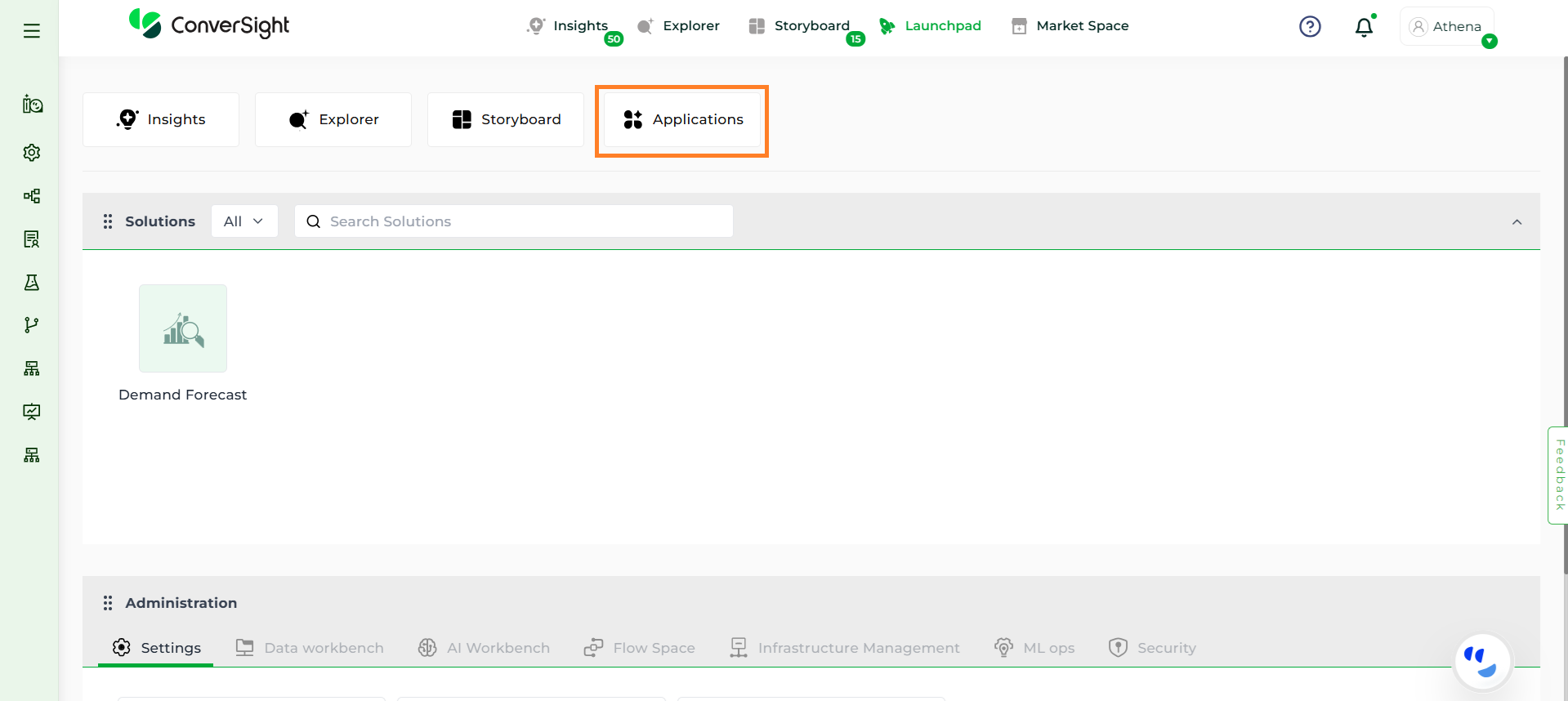
Launchpad Applications#
Step 3: Select the Trained GPT Utterances tool from the Application section.
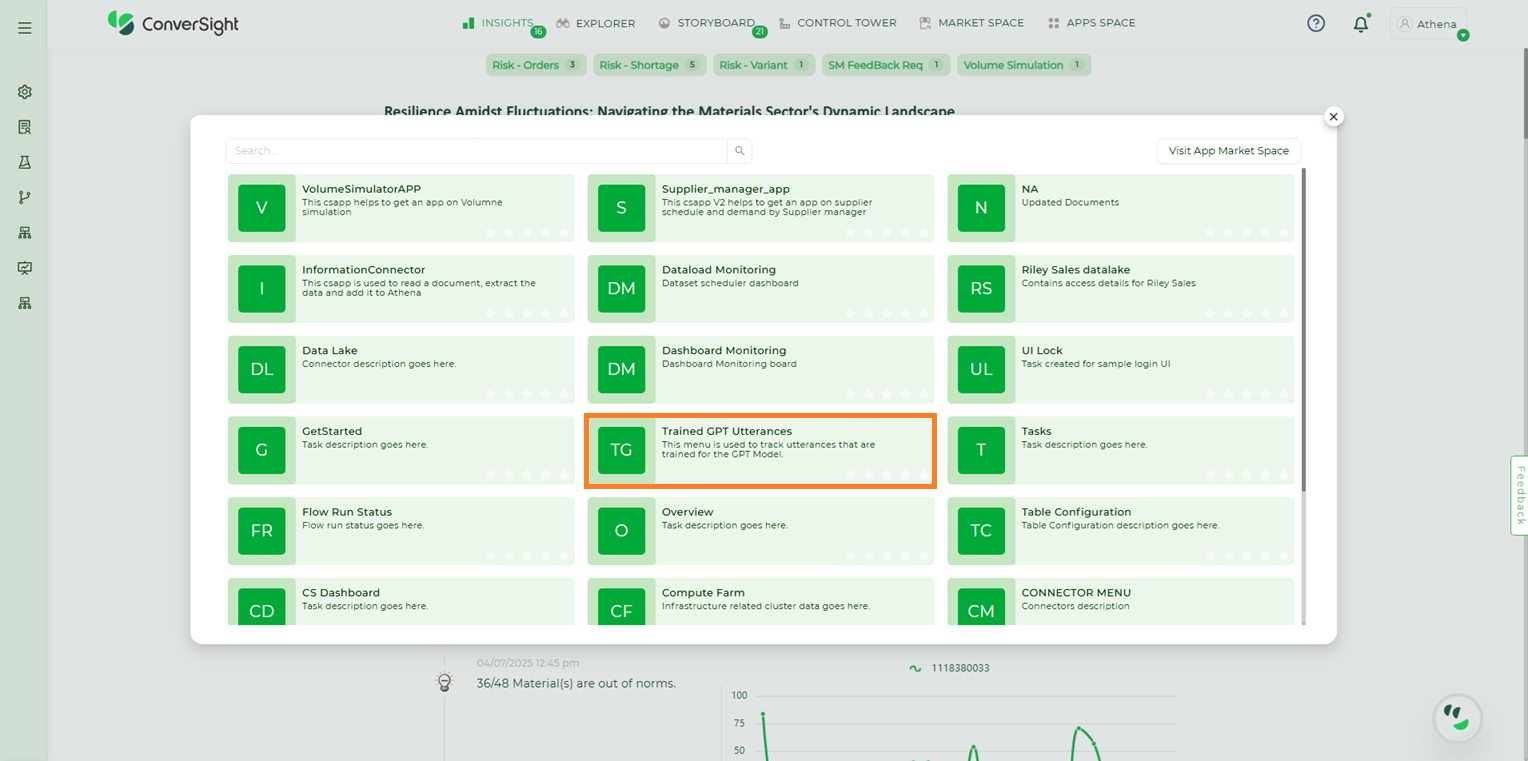
Trained GPT Utterances#
Step 4: Go to the Settings Icon of the dataset and select LLM Models to view the models trained on that particular dataset. It is important to note that the dataset will be listed only if the custom dataset model is activated.
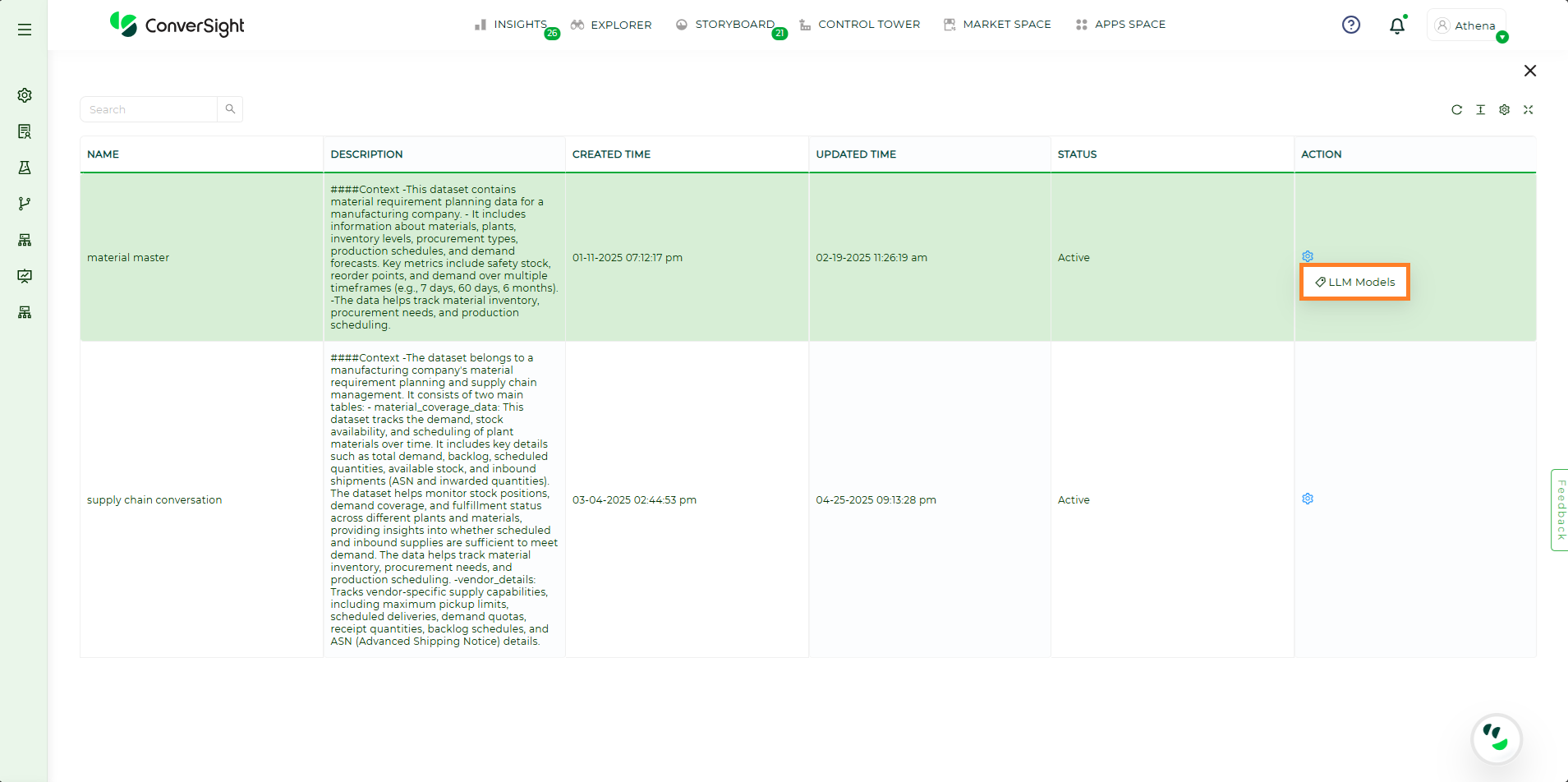
LLM Models#
Step 5: To view or update the trained utterances of the model, click on the Settings Icon and choose GPT Trained Utterances of that specific model.
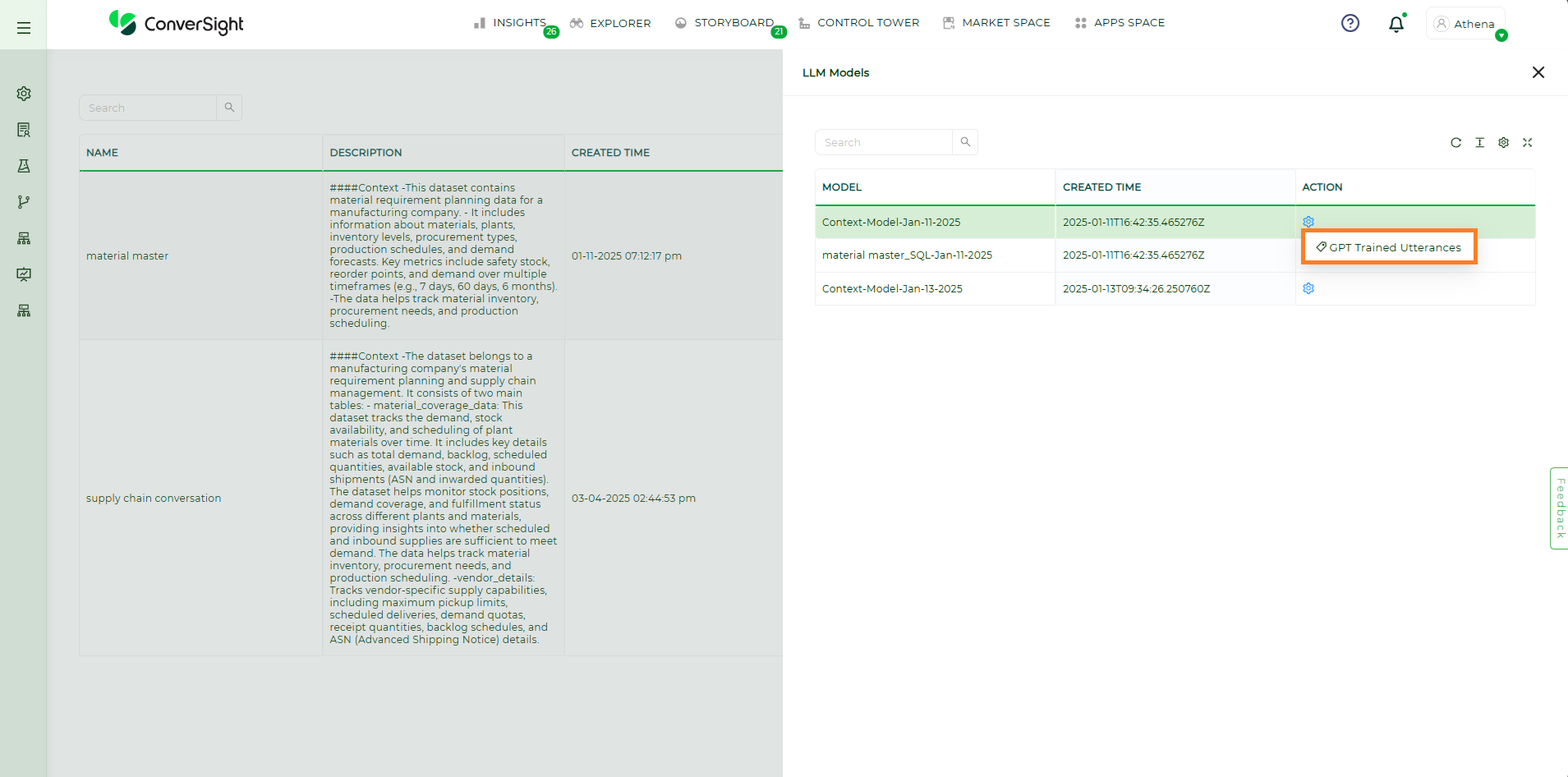
GPT Trained Utterances#
Step 6: Users have the option to eliminate an utterance by switching its status from Trained to Un-Train.
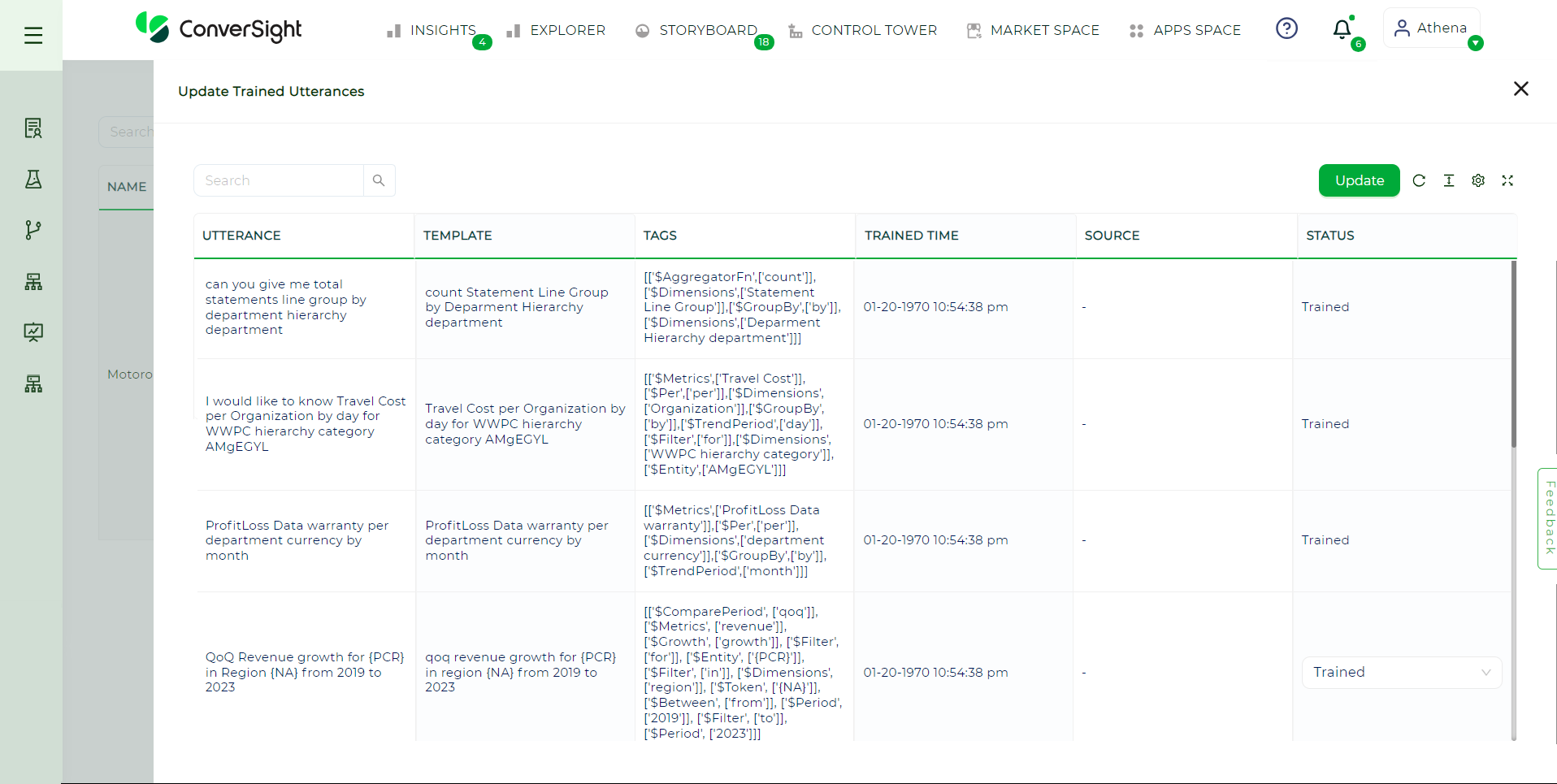
Status#