Trending Queries#
Trending Queries enable users to visualize trends over time, helping track upward or downward movements in data across selected metrics, dimensions, and dates.
Follow the steps below to run a Trending Query:
Step 1: Navigate to the Explorer page and click on the Trending option available in the query panel.
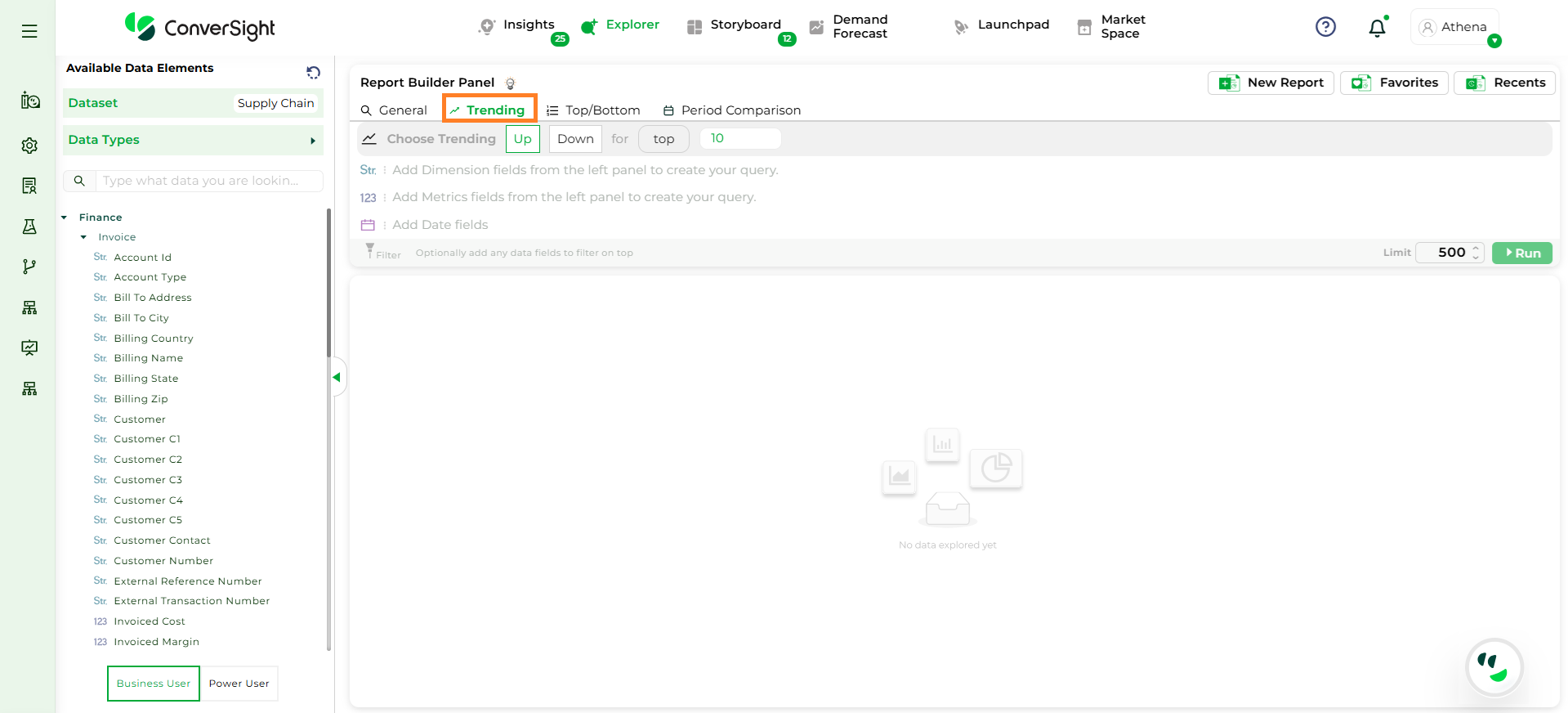
Trending Queries#
Step 2: Select the direction of the trend,
Trending Up – To view top-performing values.
Trending Down – To view bottom-performing values.
By default, the query retrieves the Top 10 results. Users can customize the number as needed.
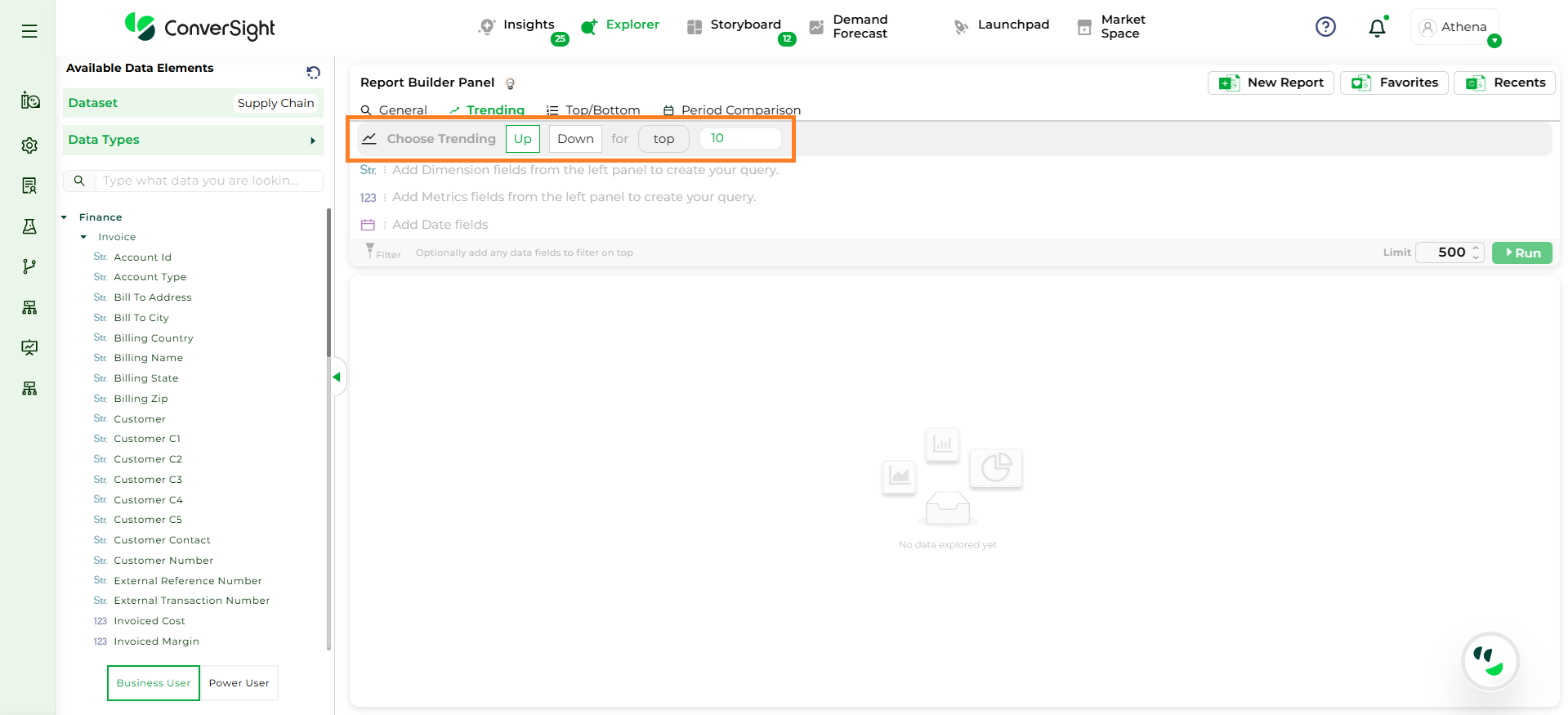
Trending Queries#
Step 3: To configure a Trending Query, you must select, One Metric column (e.g., Sales), One Dimension column (e.g., Product) and One Date column (e.g., Order Date).
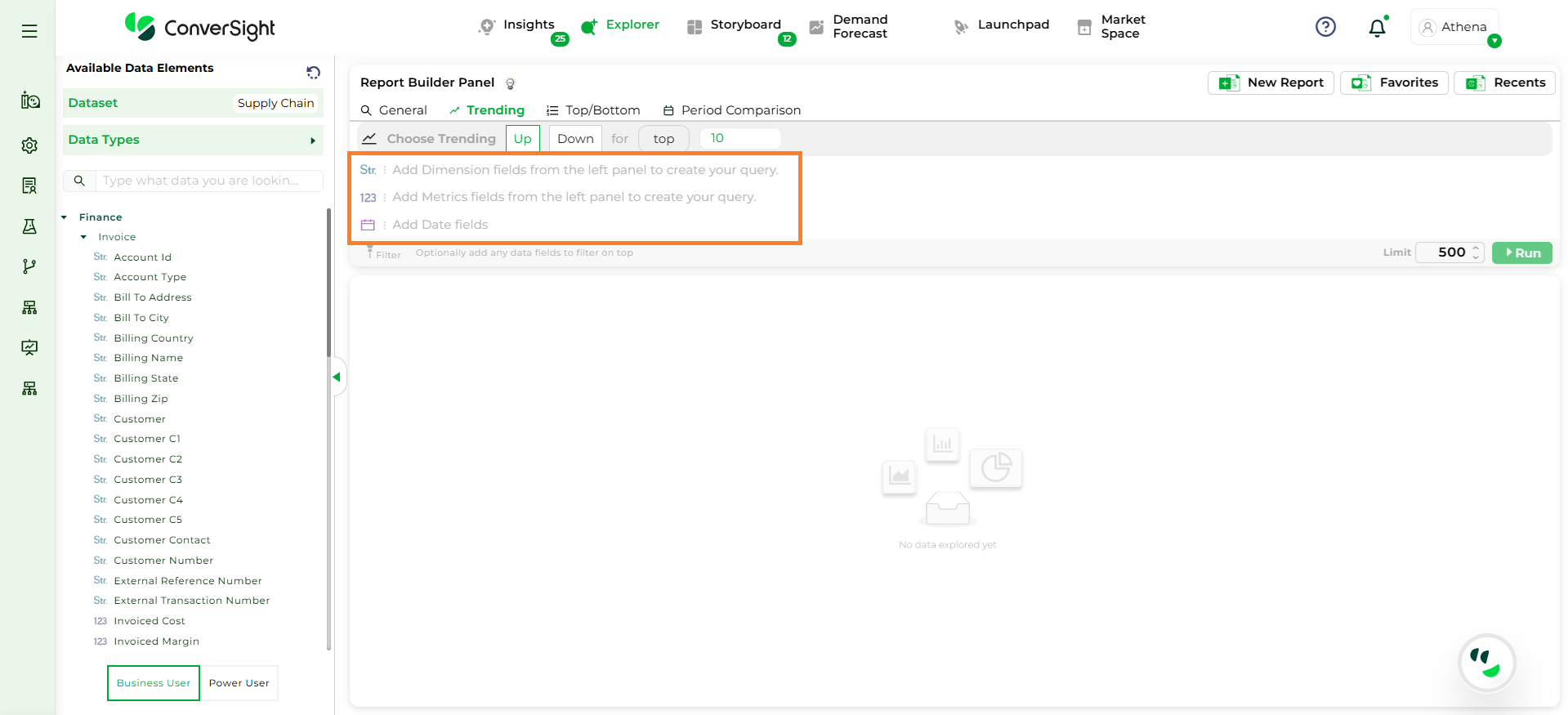
Choose Columns#
NOTE
The Run option will remain disabled until a Metric, Dimension, and Date column are selected. Only one column can be selected per type—choosing another will replace the existing selection.
Step 4: Aggregation is supported for Metric and Date columns. For Dimension columns, only count aggregation is currently available; additional aggregation options will be added in a future release.
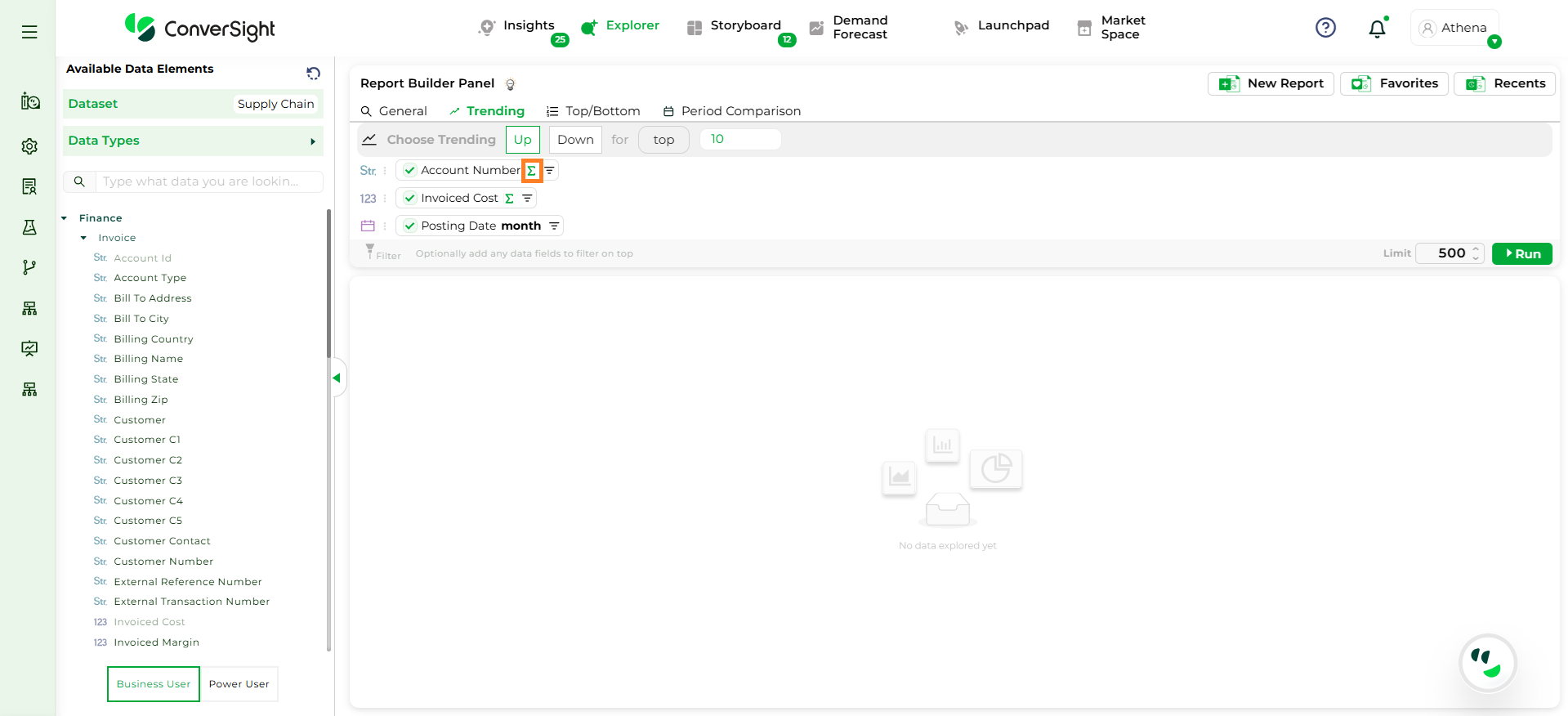
Aggregation#
Step 5: After configuring all fields, click the Run button to execute the query and view the results.
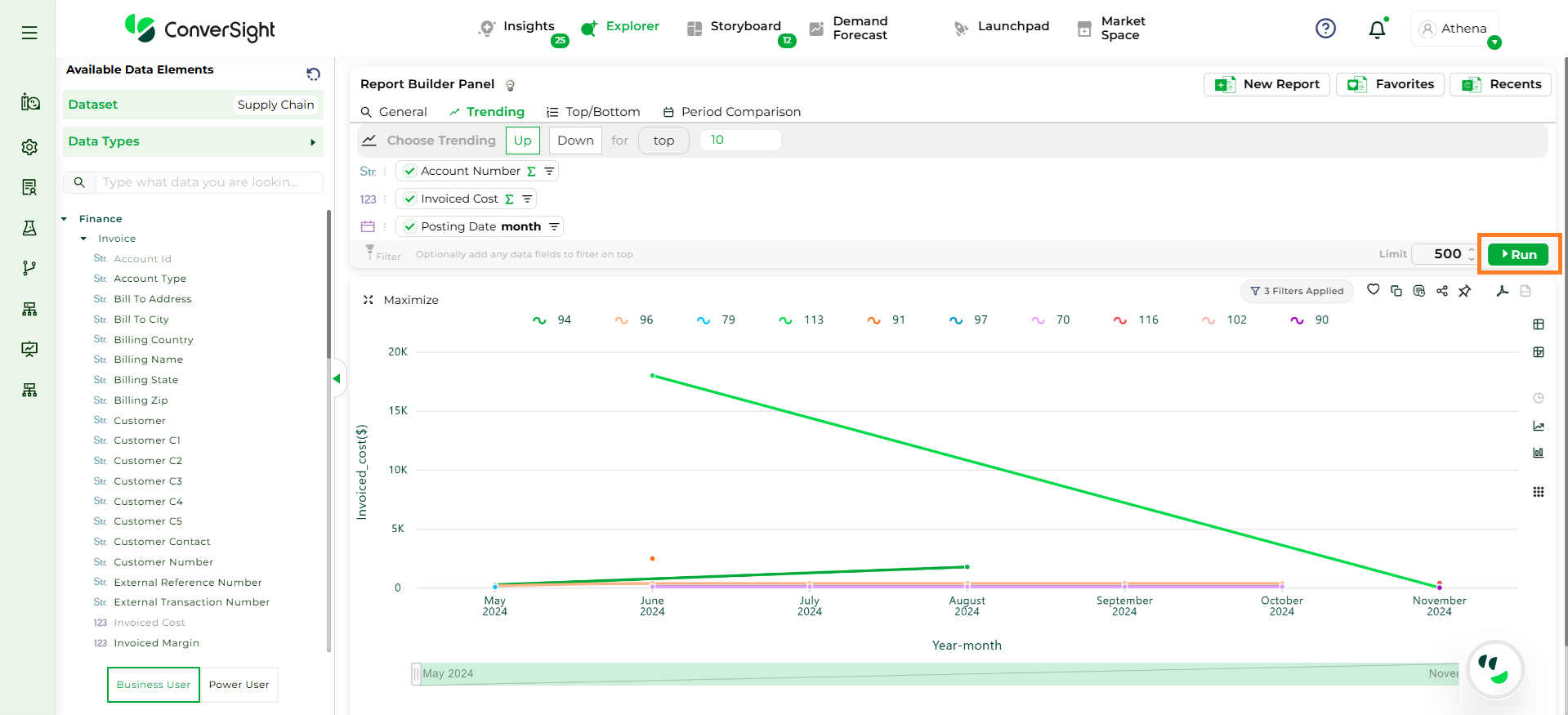
Run Button#